.jpg)
Introduction
The TranslationOS connector for Typeform makes it easy to entrust Translated with the professional or automated translation of your forms, saving you the hassle of importing and exporting content or switching between tools.
|
🚨Typeform’s translation API requires a Business plan or higher. |
|---|
This connector is event-based, meaning it is triggered by specific actions. To learn which actions trigger the connector, see the section Requesting translations.
Support
For general questions about functionality, our dedicated support team can be reached at info-tos@translated.com.
If you need technical information or you’re ready to integrate your Typeform instance with TranslationOS, feel free to reach out to us at api@translated.com for assistance with onboarding.
The onboarding process may vary depending on your needs, but the following steps are a helpful guideline:
-
Translated will ask you to provide a token (see below for instructions to retrieve it).
-
You will agree with Translated on the required service levels, also known as service types. Translated will take care of configuring the connector for you.
-
We will be ready to receive, process and deliver your translation requests!
Setting up the connector
You will need to generate a token on Typeform and communicate it to Translated. We will also ask you to confirm whether your account is configured to store responses in the EU data centre. We will then complete the connector configuration for you.
Generating a token
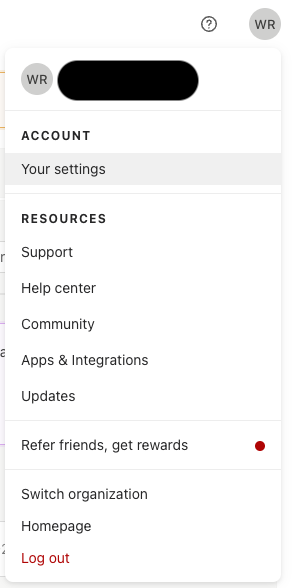
You can create a new API key by navigating to your profile icon and selecting Your settings.
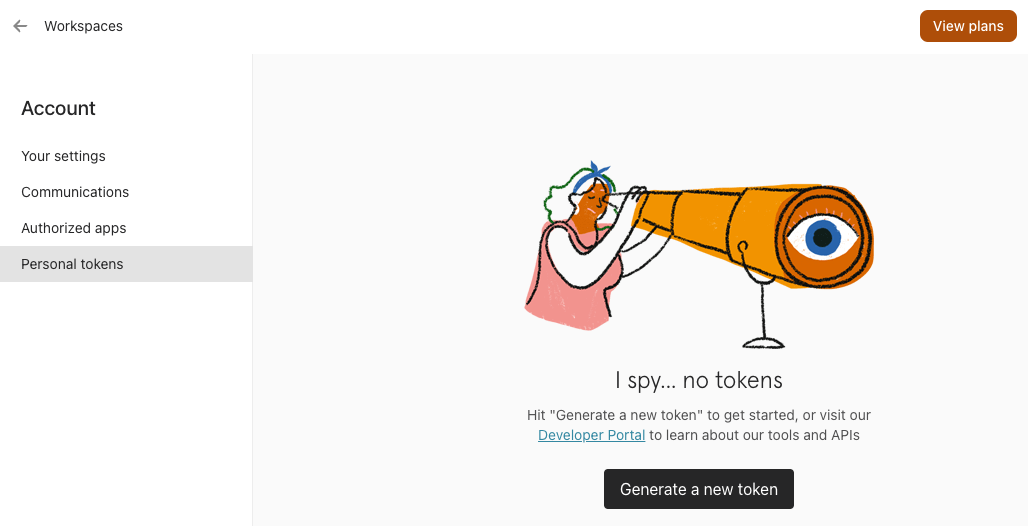
In the sidebar, choose Personal tokens, then click Generate a new token.
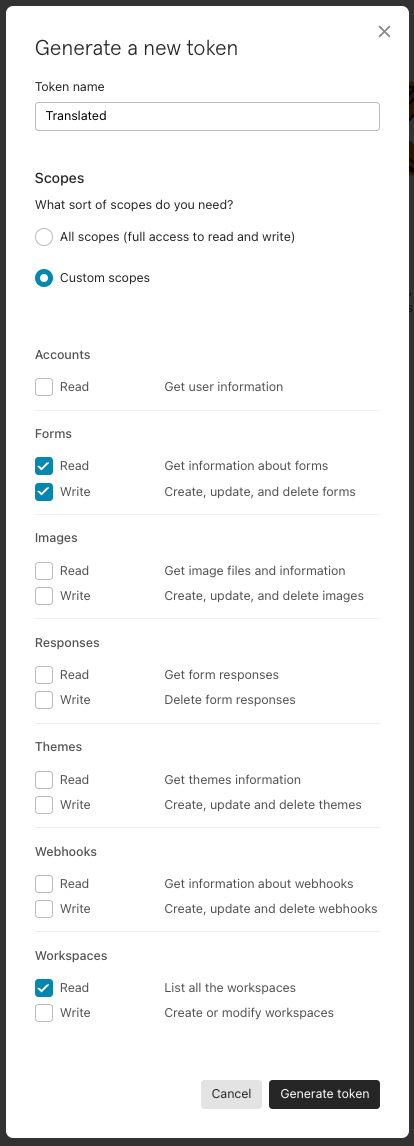
Give the token a name and enable the following custom scopes, then click Generate token.
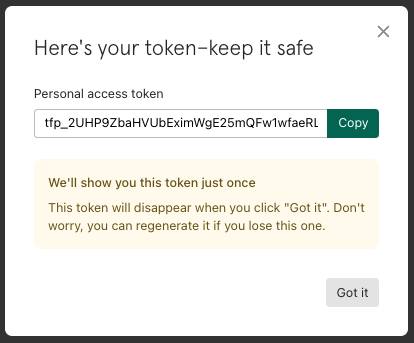
Make sure to copy the token in the pop-up, as it won’t be available once you’ve clicked Got it.
Using the connector
Accessing TranslationOS
Log in to TranslationOS with your credentials.
Navigating the UI
In the sidebar you can select whether to view your forms by workspace or directly. Note that only published forms are displayed.
Requesting translations
Select the items you want to translate.
.png?cb=92ff45c096aa2d0a812338010bb1294b)
Once you have selected your items, click Add to order. A button labelled Place order will appear in the upper right corner with the total number of items in the cart.
.png?cb=24bfdbe29a08ec80c4713f55cf1ff9b5)
Click Place order when you are ready, and fill in the fields as required.
.png?cb=50b99d6007178dd06c706aeebfd17015)
Click Place order to complete your order.
Monitoring the translation progress
Once the order has been submitted successfully, the status of the included forms is available on TranslationOS.
Receiving the translated content
As each request is delivered, the corresponding form translation is uploaded to Typeform.
When translations are delivered, the statuses of the translations are inconsistent between the API and UI owing to a known and accepted limitation on Typeform’s end.
To work around the lack of status visibility in the UI, automatic notifications can be set up to inform you of deliveries. In addition, the Typeform API can be called directly to verify the status of the translations of each form.
FAQ
How do I track my assets in TranslationOS?
TranslationOS uses abstract concepts like content ID, order ID and order group ID to map your content. The values for these fields change depending on the source platform. To retrieve a Typeform form in TranslationOS, use the Requests or Content views in TranslationOS and type the asset name or type according to the table below.
|
TranslationOS ID |
Typeform value |
Comment |
|---|---|---|
|
Content ID |
<form ID> |
|
|
Order ID |
<form title> |
In the event that the order ID would exceed the TranslationOS API’s limit of 255 characters, <form title> is trimmed. |
|
Order group ID |
N/A |
This value is provided in the field labelled Order name in the order form. |
I don’t see draft forms
The Typeform API only grants us access to published forms. You must therefore publish a form before you can translate it.