.jpg)
Introduction
The TranslationOS connector for Lokalise makes it easy to entrust Translated with the professional or automated translation of your software strings and ad hoc documents, saving you the hassle of importing and exporting content or switching between tools.
This connector is fetch-based, meaning it checks Lokalise at a configurable interval for any content that you have marked for translation. To learn how to mark content for translation, see the section Requesting translations.
Support
For general questions about functionality, our dedicated support team can be reached at info-tos@translated.com.
If you need technical information or you’re ready to integrate your Lokalise account with TranslationOS, feel free to reach out to us at api@translated.com for assistance with onboarding.
The onboarding process may vary depending on your needs, but the following steps are a helpful guideline:
-
Translated will ask you to add a dedicated team member.
-
Translated will enable you to test the connector in sandbox mode, which means that you will get back machine-translated content to test the user experience.
-
You will agree with Translated on the required service levels, also known as service types. Translated will take care of configuring the connector for you.
-
We will be ready to receive, process and deliver your translation requests!
Setting up the connector
All that’s required to allow us to configure your connector is adding a team member that will be used by the connector. In the case of document projects, a setting also needs to be enabled.
Adding a team member
Click the avatar in the bottom left corner and choose Team settings.
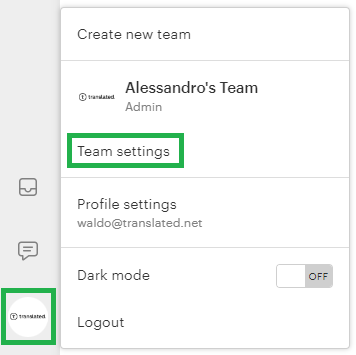
Click Add team member, then fill in the Add team users pop-up form.
-
E-mail addresses: Translated will provide you with the email address to insert. It will typically take the form customer_name@translated.net.
-
Project: for now, select any of the projects; more can be added later.
-
Role: select Administrator.
-
Reviewer: enable if required.
-
Reference languages (view): select the languages you would like to assign to us.
-
Contributable languages (edit): select the languages you would like to assign to us.
Click Add team user. Translated will receive an invitation to create an account and will take care of the required steps. Once the connector is operational, it will perform all actions on Lokalise by impersonating this user.
Document projects
Once you have created a document project, navigate to More… > Settings in the top menu.
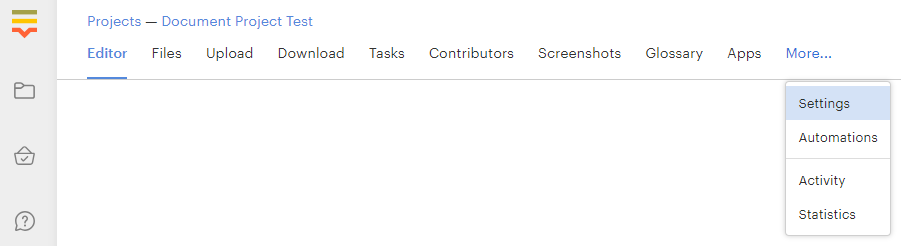
In the Miscellaneous section, tick the option Offline translation.
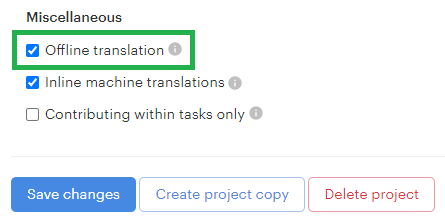
The Split text into segments beta feature is currently not supported, so please ensure that it isn’t enabled.
When you’re ready, click Save changes.
Choosing a localisation mode
The connector supports task-based assignment and continuous localisation, except in the case of document-based projects, which only support task-based assignment.
These modes are mutually exclusive within the same project: tasks are ignored if they are created in projects for which continuous localisation has been enabled. To assign Translated a task, you need to disable continuous localisation before creating and assigning the task. Once the task has been processed, continuous localisation can be re-enabled.
To enable continuous localisation, select a non-document-based project, navigate to More… > Settings and insert {{tos_mode: continuous_localization}} in Description field. Specify your desired service type by inserting {{tos_service_type: service type name}} in the Description field as well. If branching is enabled, specify the in-scope branch in the project description using the custom flag {{tos_branch: branch name}}. If this flag isn’t present, the master branch is processed by default.
Requesting translations
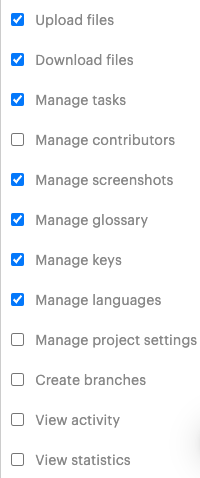
Before assigning any work to Translated, open the relevant project, select Contributors from the top menu and verify that the user impersonated by the connector has the following admin permissions, as outlined in this Lokalise help article:
Continuous localisation
For projects with continuous localisation enabled, translations aren’t explicitly requested. Each time the connector polls Lokalise, it automatically ingests keys meeting the below criteria in projects for which continuous localisation has been enabled:
-
New keys with a populated source field where any target field in a supported language is empty and Unverified.
-
Existing keys whose source has changed, so the status of the translations transitions to Unverified.
If branching is enabled for a project, the connector only processes the keys in the specified branch.
To prevent the connector from processing some of the languages configured in the project, see this FAQ.
Task-based assignment
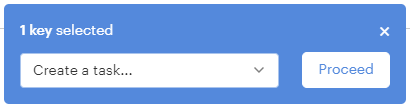
To assign us a task, begin by selecting keys in a project for which continuous localisation isn’t enabled. In the pop-up that appears in the lower-left corner, select Create a task… from the drop-down, then click Proceed.
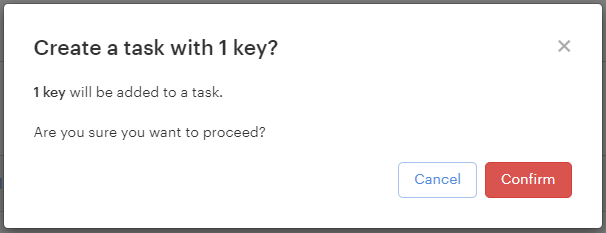
In the pop-up, click Confirm.
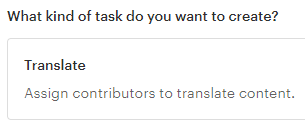
Select Translate under What kind of task do you want to create?. The connector ignores Review tasks.
Name the task in the Title field, then specify your desired service type by inserting {{tos_service_type: service type name}} in the Description field. If a service type isn’t specified here, the connector falls back to the one indicated in the project description, if any.
Click Next: Scope and assignees. In this screen, select the required source and target languages, and assign them to the Translated user. Ideally, our user should be the only contributor. Note that you must assign the user specifically, not a group containing the user.
Tip: if you have other service providers working on different languages in the same project, we recommend enabling Lock translations under Help assignees in the Advanced options pop-up to prevent them from editing the translations assigned to Translated.
When you’re ready, click Create task.
The task will be processed by the connector at the next polling cycle. The connector fetches each key assigned to the Translated user, except for verified keys or those with an empty source. Keys already in progress are skipped if their source hasn’t changed; they are processed if their source has changed since the previous ingestion.
-
In software localisation projects, the tag
TOS_IN_PROGRESS_<target language code>is added to each key. -
The tag isn’t added to keys in document-based projects owing to limitations in the Lokalise API.

Receiving the translated content
The connector’s delivery logic relies on limited version control, which is based on the following factors:
-
Whether the source text of a key has changed since the delivered translation was requested.
-
Whether the existing translation on Lokalise is verified or reviewed.
This ensures that the connector always ingests the latest version of the source text.
If the delivered translation corresponds to the latest version of the source text…
When the translation of a key is delivered, the connector replaces the tag TOS_IN_PROGRESS_<target language code> with the tag TOS_TRANSLATED_<target language code> in the case of software localisation projects, or adds the tag TOS_TRANSLATED_<target language code> in the case of document-based projects.

The task progress is advanced.
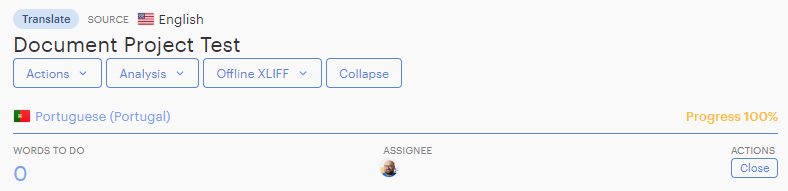
If the delivered translation is outdated…
The connector does not remove the TOS_IN_PROGRESS_<target language code> tag.
If the translation on Lokalise is verified, the connector does not overwrite it with the delivered translation.
If the translation on Lokalise is not verified, the connector uploads the delivered translation, but leaves it unverified.
If the existing translation is reviewed…
It is not overwritten with the delivered translation.
The connector does not remove the TOS_IN_PROGRESS_<target language code> tag.
FAQ
How do I track my assets in TranslationOS?
TranslationOS uses abstract concepts like content ID, order ID and order group ID to map your content. The values for these fields change depending on the source platform. To retrieve a Lokalise key, task or project in TranslationOS, use the Requests or Content views in TranslationOS and search by any of the values in the table below.
|
TranslationOS ID |
Lokalise value |
Comment |
|---|---|---|
|
Content ID |
<translation ID>-<key name> |
|
|
Order ID |
<task name or project name> |
The task name is used in the case of task-based assignment, while the project name is used in continuous localisation mode. |
|
Order group ID |
<task ID or team ID> |
The task ID is used in the case of task-based assignment, while the team ID is used in continuous localisation mode. |
Are screenshots supported?
Yes. They are ingested and provided as visual reference to translators in Matecat, our CAT tool.
How can instructions be sent to translators?
You can add comments at the key level, and the comment retrieval feature can be enabled.
Can the source language be specified at the task level?
Yes. The connector uses the source language configured for each specific task.
How can I specify which languages to process in continuous localisation mode?
For projects in continuous localisation mode, you can specify a list of languages to exclude from processing by the connector. This is done using the following syntax in the project description:{{tos_exclude: <comma-separated list of Lokalise language codes>}}.
For example, {{tos_exclude: ar_SA,eu_ES,ko}} would exclude Saudi Arabian Arabic, Basque and Korean.
If the syntax is found in the description of a project that does not have continuous localisation mode enabled, it is ignored.
Any invalid or unsupported language codes in the list are skipped without notification.
If a key with the TOS_TRANSLATED label is added to a new task, will the connector ignore it?
No. In task assignment mode, the connector’s logic is based on the task ID. If a previously-translated key, i.e. a key with the TOS_TRANSLATED label, is added to a new task, the connector will intake it.
Are comments ingested for context?
The connector can be configured to retrieve key comments and present them as context information in Matecat. However, it only retrieves the first ten comments per key, and enabling this feature slows down intake.
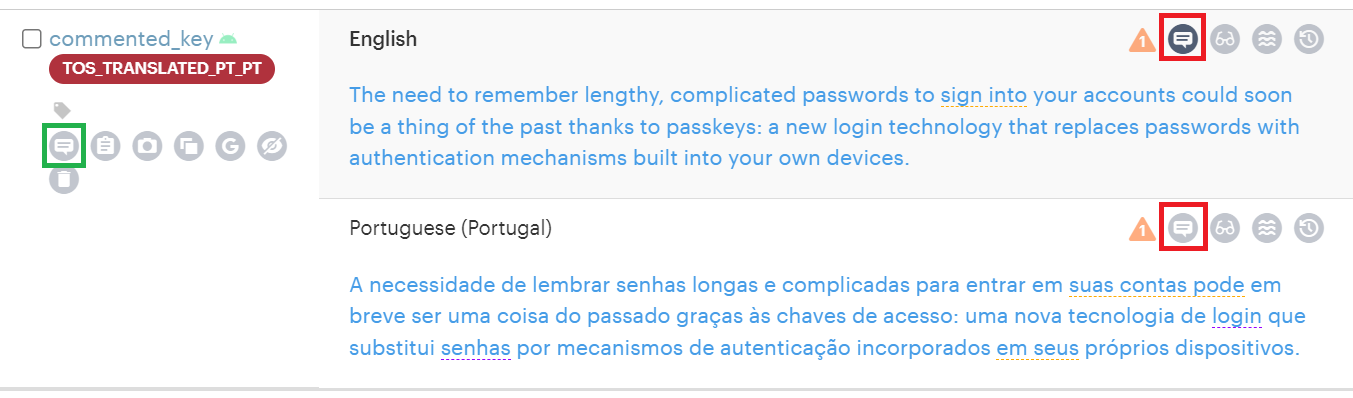
Note that the comments must be added to the key, not the translation, i.e. using the comment button in green, not the ones in red in the screenshot below.
Are key descriptions ingested for context?
Yes.
Are character limits supported?
The connector supports key-level character limits of up to 500 characters.
Is ICU pluralisation supported?
The connector only correctly handles ICU pluralisation for languages with two plural forms.
Are translations saved to my translation memory on Lokalise?
Yes. When the connector updates the keys, the translations are saved to the project’s translation memory. This is the default and only possible behaviour allowed by the Lokalise API.
Can the TOS_IN_PROGRESS and TOS_TRANSLATED tags be disabled?
Yes. We can configure the connector to apply both, one or none of these tags.
Is project branching supported?
Yes.
In task-based assignment mode, the connector processes all assigned tasks in all branches.
For projects with continuous localisation enabled, the connector processes the branch specified in the project description using the custom flag {{tos_branch: branch name}}. If this flag isn’t present, the master branch is processed by default.
Are archived keys processed?
In continuous localisation mode, the connector can be configured to process or ignore archived keys.