.jpg)
Introduction
The TranslationOS connector for Contentful makes it easy to entrust Translated with the professional or automated translation of your entries, saving you the hassle of importing and exporting content or switching between tools.
This connector is event-based, meaning it is triggered by specific actions. To learn which actions trigger the connector, see the section Requesting translations.
Support
For general questions about functionality, our dedicated support team can be reached at info-tos@translated.com.
If you need technical information or you’re ready to integrate your Contentful instance with TranslationOS, feel free to reach out to us at api@translated.com for assistance with onboarding.
The onboarding process may vary depending on your needs, but the following steps are a helpful guideline:
-
We will ask you to provide your space ID and a content management token (see below for instructions to retrieve them).
-
We will guide you through testing the connector in sandbox mode, which means that you will get back machine-translated content to test the user experience.
-
You will agree with Translated on the required service levels, also known as service types. We will then take care of configuring the connector for you.
-
We will be ready to receive, process and deliver your translation requests!
Setting up the connector
You will need to retrieve the following two pieces of data from Contentful and communicate them to us. We will then complete the connector configuration for you. With that done, you’ll be ready to set up the Contentful app, which you’ll use to send your entries for translation.
To begin, log in to Contentful with an admin account. The account must have read/write access to the content you want to send for translation.
Retrieving the space ID
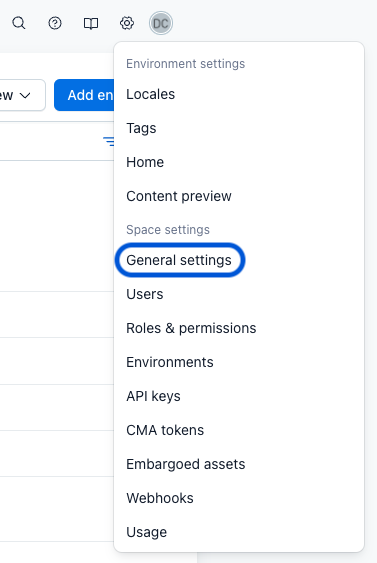
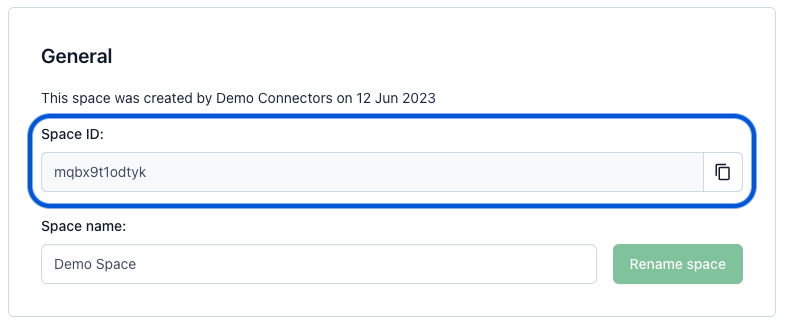
To get your space ID, navigate to Settings > General settings (under Space settings). The ID is provided in the General section.
Generating a management token
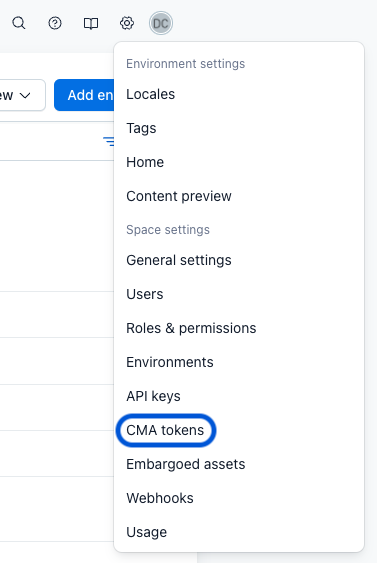
To generate a management token, navigate to Settings > CMA tokens (under Space settings).
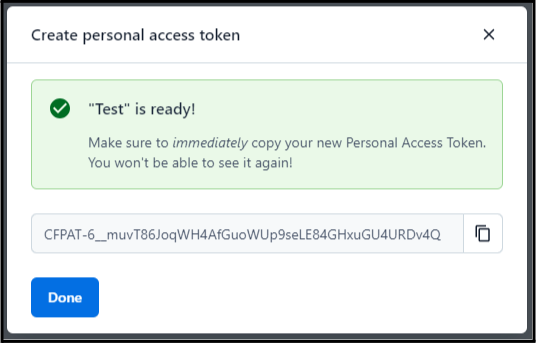
In the screen that appears, click Create personal access token, then fill in the token name (e.g. TranslationOS), select No expiration under Expiration date, **and click Generate.
Make sure to copy the token, as it can’t be accessed again, then click Done.
Creating the connector app
Once we’ve confirmed that your connector configuration has been set up, you’re ready to create the connector app on Contentful. This can be done in two ways:
-
Open the left-hand sidebar, navigate to Organization settings & subscriptions > Apps and click Create app.
-
From within the relevant space, navigate to Apps > Marketplace > Manage app definitions and click Create app.
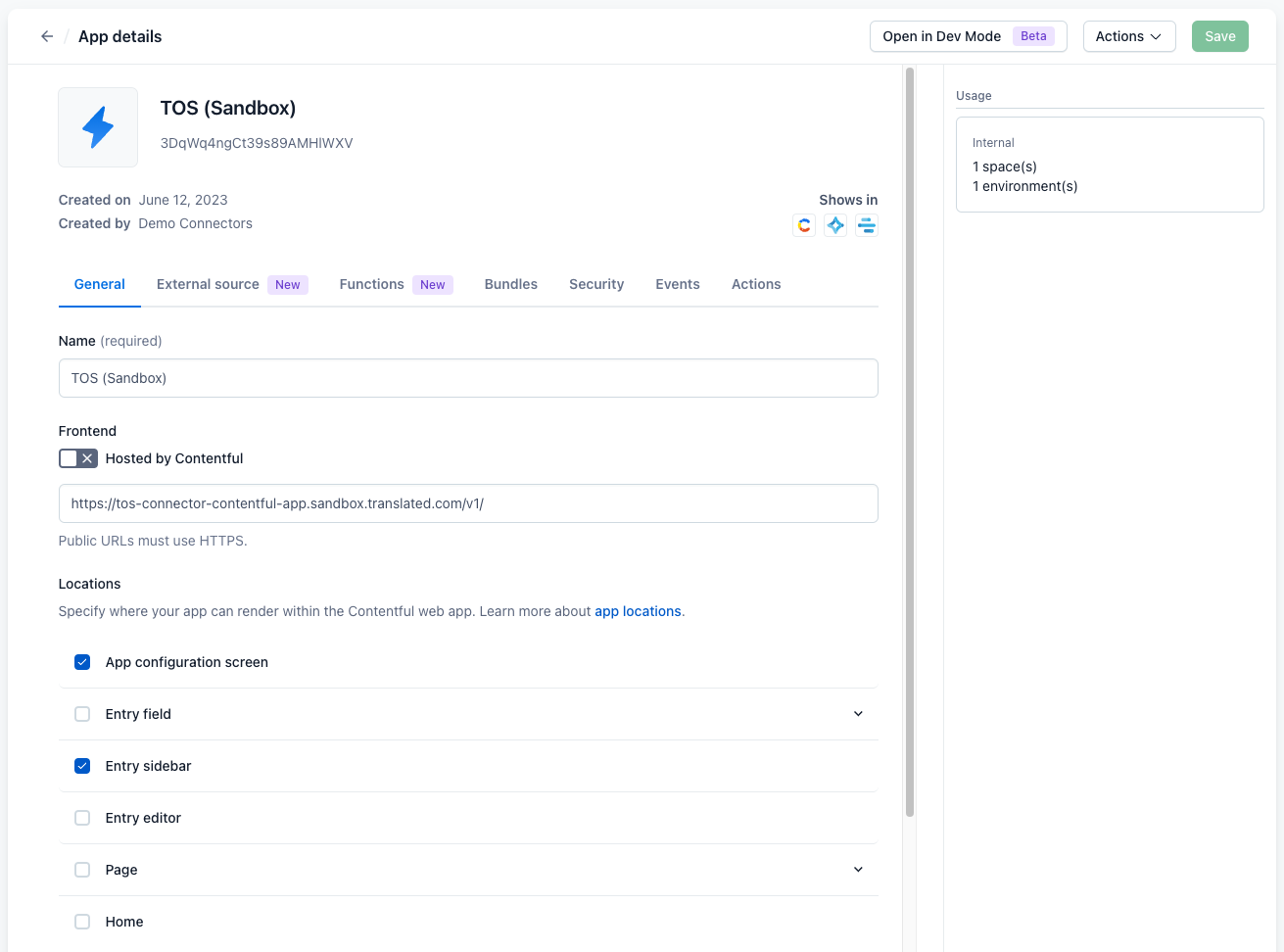
In the app details page, fill in the name you would like to give the app and disable the Hosted by Contentful toggle. Insert one of the following URLs in the Frontend section, depending on whether you’re starting out with tests (sandbox) or you’re going into production:
-
Sandbox: https://tos-connector-contentful-app.sandbox.translated.com/v1/
-
Production: https://tos-connector-contentful-app.translated.com/v1/
Under Locations, choose only App configuration screen and Entry sidebar, then click Save.
Installing the connector app
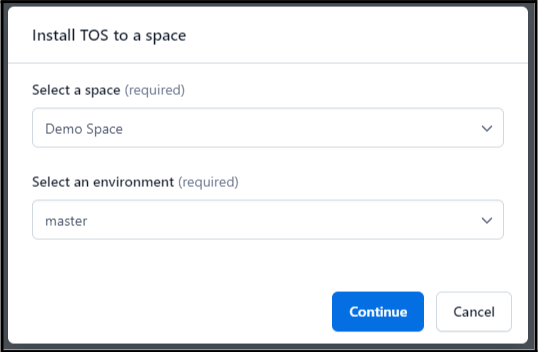
In the Apps view, click the meatballs icon (three horizontal dots) alongside the app you’ve just created, then select Install to space. Select the space and environment in which to install the app, then click Continue.
In the next view, insert your TranslationOS API key. Make sure to use the right key for the app: if you’re using the sandbox app, insert your sandbox API key, otherwise use your production API key.
Proceed by selecting the content models for which to enable the app, then clicking Save.
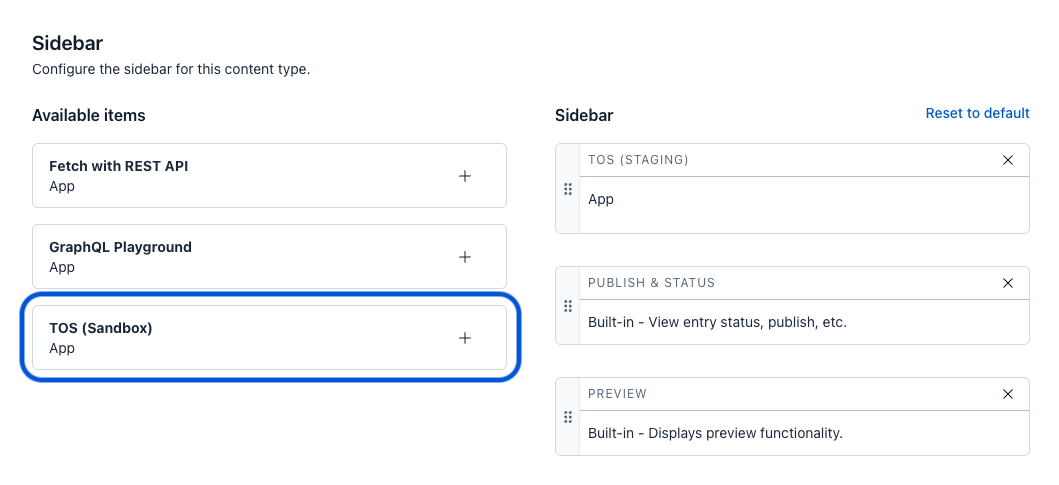
In the space in which you’ve installed the app, select Content model in the top bar, pick a content model, choose Sidebar, and insert the app where desired.
Configuring target locales
The languages into which you can request translations depend on the globally-enabled locales. These must be configured by navigating to Settings > Locales (under Environment settings), clicking Add Locale, configuring the new locale as required, making sure to select specific variant where appropriate, and clicking Save.
Using the connector
Requesting translations
As soon as we’ve confirmed that the connector configuration is in place, you’re ready to translate your entries. The connector will only be available for the content models you selected during installation.
Before sending entires for translation, make sure that your space’s master language is populated with source content.
Once you’re ready to send an entry to us, click New translation order in the sidebar app to place an order:
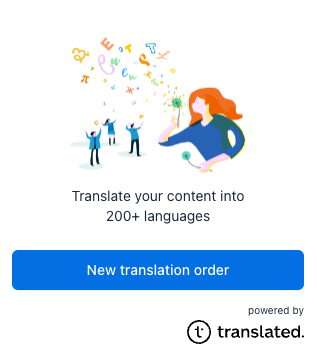
When placing an order, you can:
-
select target language(s),
-
choose a service type, which determines the workflow, cost, and turnaround time of your translation order and is detailed in your service level agreement, and
-
optionally add instructions for translators.
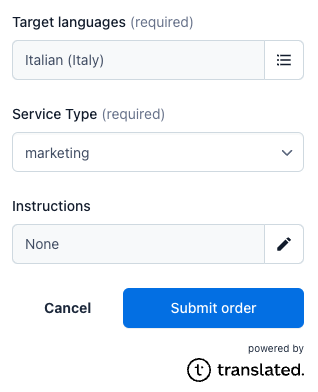
Click Submit order to send the entry for translation. The order will appear in a list in the app with the status In queue. You can place additional orders at any time from the same screen.
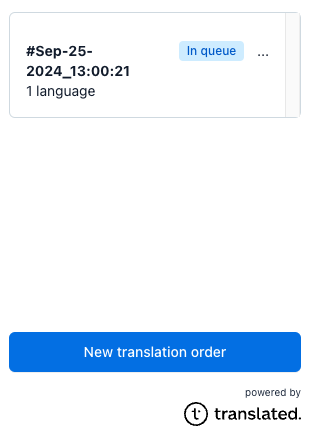
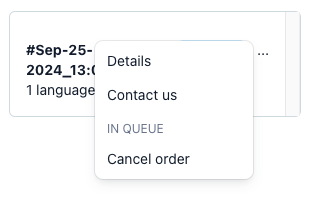
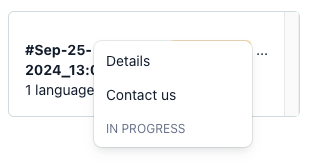
To see more details or cancel the order, click the three dots alongside the order and choose the desired option.
Monitoring the translation progress
Once translators have begun working on your order, it can no longer be cancelled and the status changes to In progress.
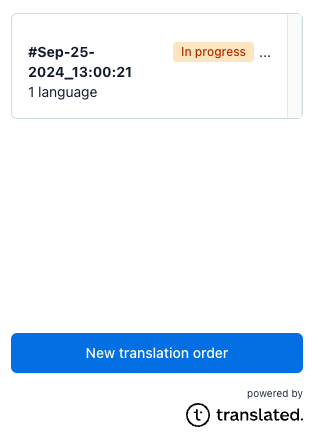
For more information, click the three dots alongside the order and choose Details.
The order details screen provides information about your order, as well as a direct link to the TranslationOS dashboard.
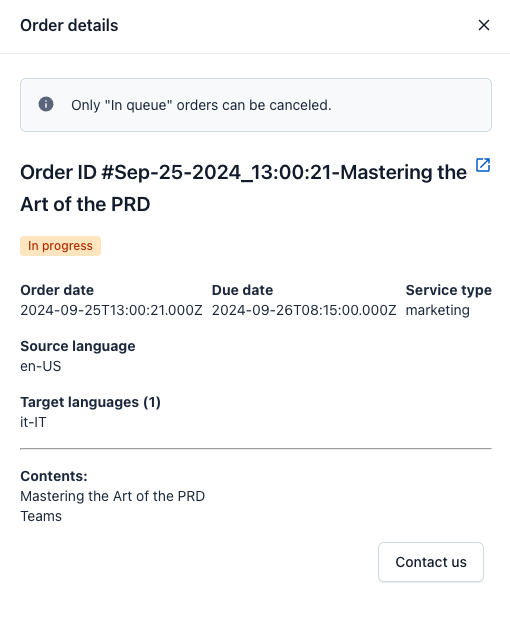
You can use the order group ID, which is displayed alongside Order # and explained here, to track your request on TranslationOS.
Receiving the translated content
As each order is delivered, it disappears from the connector app. When no orders are in progress for a particular entry, the app returns to its original state.
|
🚨 If you modify the source content of a field in Contentful while it is part of an ongoing translation order, the translation of that field will not be delivered. This happens because Contentful does not provide a way to indicate whether translations are outdated. Without this information, there is no way to confirm if existing translations match the most recent source content. Delivering these translations could result in inconsistencies and outdated content being used. Fields that are not modified during the order will still be delivered as usual. However, for fields that are updated, you will need to wait until the order is completed and then resend the entry for translation. This ensures that all translations correspond to the updated source content and eliminates the risk of continuing to use outdated translations. If you need to modify a field after the translation order has been delivered, you can immediately resend the entry for translation. The connector ensures that translations for modified fields are withheld during active orders, preventing potential inaccuracies and maintaining alignment between your source content and translations. |
|---|
FAQ
How do I track my assets in TranslationOS?
TranslationOS uses abstract concepts like content ID, order ID and order group ID to map your content. The values for these fields change depending on the source platform. To retrieve a Contentful entry or asset in TranslationOS, use the Requests or Content views in TranslationOS and search by any of the values in the table below.
Entries
|
TranslationOS ID |
Contentful value |
Comment |
|---|---|---|
|
Content ID |
<entry ID> |
<field name> |
|
Order ID |
<entry title> |
If the entry is untitled, the order ID is set to Untitled - <entry ID>. |
|
Order group ID |
<date>-<main entry title> |
In the case of categories, if they are only used by one entry, the title of that entry is used. However, if they are used by several entries, the category name itself (i.e. the value of the order ID) is used. |
Assets
|
TranslationOS ID |
Contentful value |
Comment |
|---|---|---|
|
Content ID |
<asset ID> |
|
|
Order ID |
<asset title> |
If the asset is untitled, the order ID is set to Untitled - <asset ID>. |
|
Order group ID |
<date>-<main entry title> |
In the case of categories, if they are only used by one entry, the title of that entry is used. However, if they are used by several entries, the category name itself (i.e. the value of the order ID) is used. |
Does the connector support character limits?
Yes, up to 500 characters.
Do the content models selected when setting up the app limit which type of content the connector supports?
No. The content models selected during setup determine in which entries the TranslationOS app is displayed in the sidebar. In other words, you are restricting from which entries users can place translation orders. However, the connector will ingest references of any content model.