.jpg)
Introduction
The TranslationOS plug-in for Sanity Studio makes it easy to entrust Translated with the professional or automated translation of your documents, saving you the hassle of importing and exporting content or switching between tools.
The TranslationOS plugin for Sanity Studio is available on the NPM registry.
This connector is event-based, meaning it is triggered by specific actions. To learn which actions trigger the connector, see the section Requesting translations.
Document- and field-level localisation
Sanity offers two approaches to localisation: document- and field-level. The TranslationOS plug-in currently only supports document-level localisation.
Support
For general questions about functionality, our dedicated support team can be reached at info-tos@translated.com.
If you need technical information or you’re ready to start using the Sanity Studio plugin, feel free to reach out to us at api@translated.com for assistance with onboarding.
The onboarding process may vary depending on your needs, but the following steps are a helpful guideline:
-
You will agree with Translated on the required service levels, also known as service types. You will then download the plugin from the NPM registry.
-
We will be ready to receive, process and deliver your translation requests!
Setting up the plugin
Getting a TranslationOS API key
We will provide you with an API key.
Sending Translated your configuration information
Send us the following configuration information:
-
An editor token
-
Your dataset
-
Your project ID
Installing and configuring the plugin
To install the plugin, visit the NPM registry and follow the provided configuration instructions. Send us the language codes you have set up.
Translated will set up any necessary language codes aliases and do the required configuration.
Using the plugin
Requesting translations
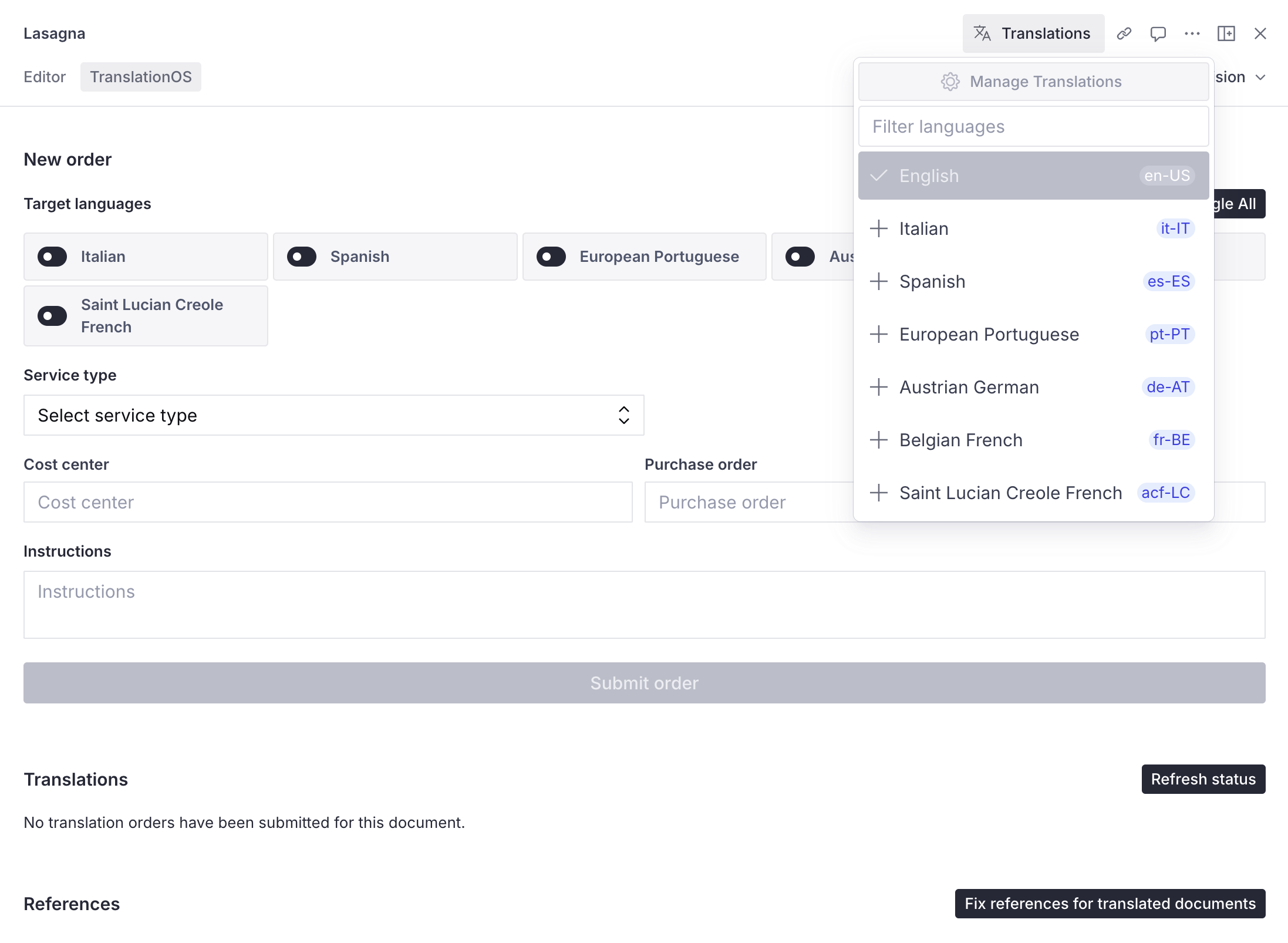
To place an order, begin by opening the TranslationOS tab in any document whose schema has been included in the plug-in configuration.
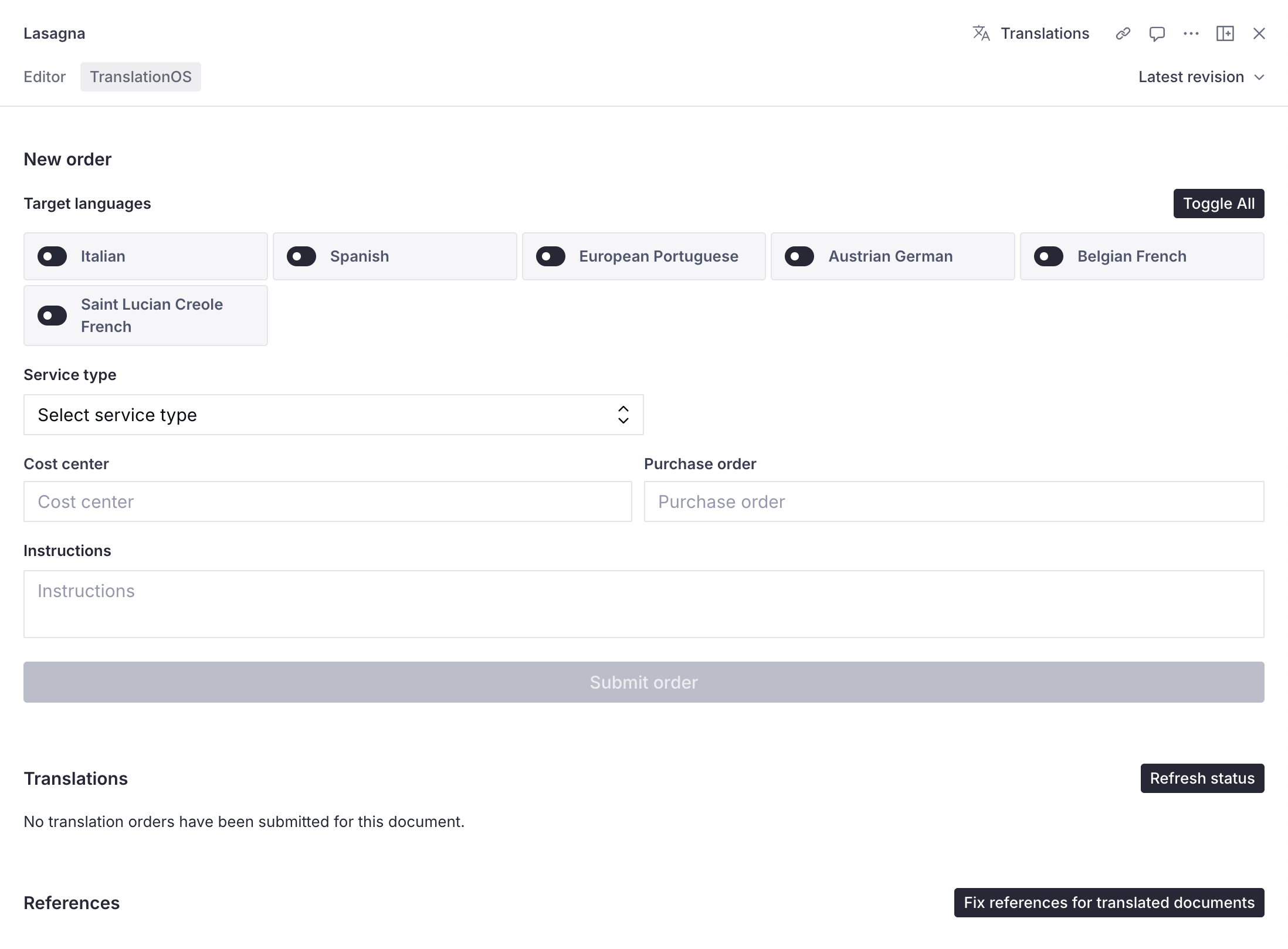
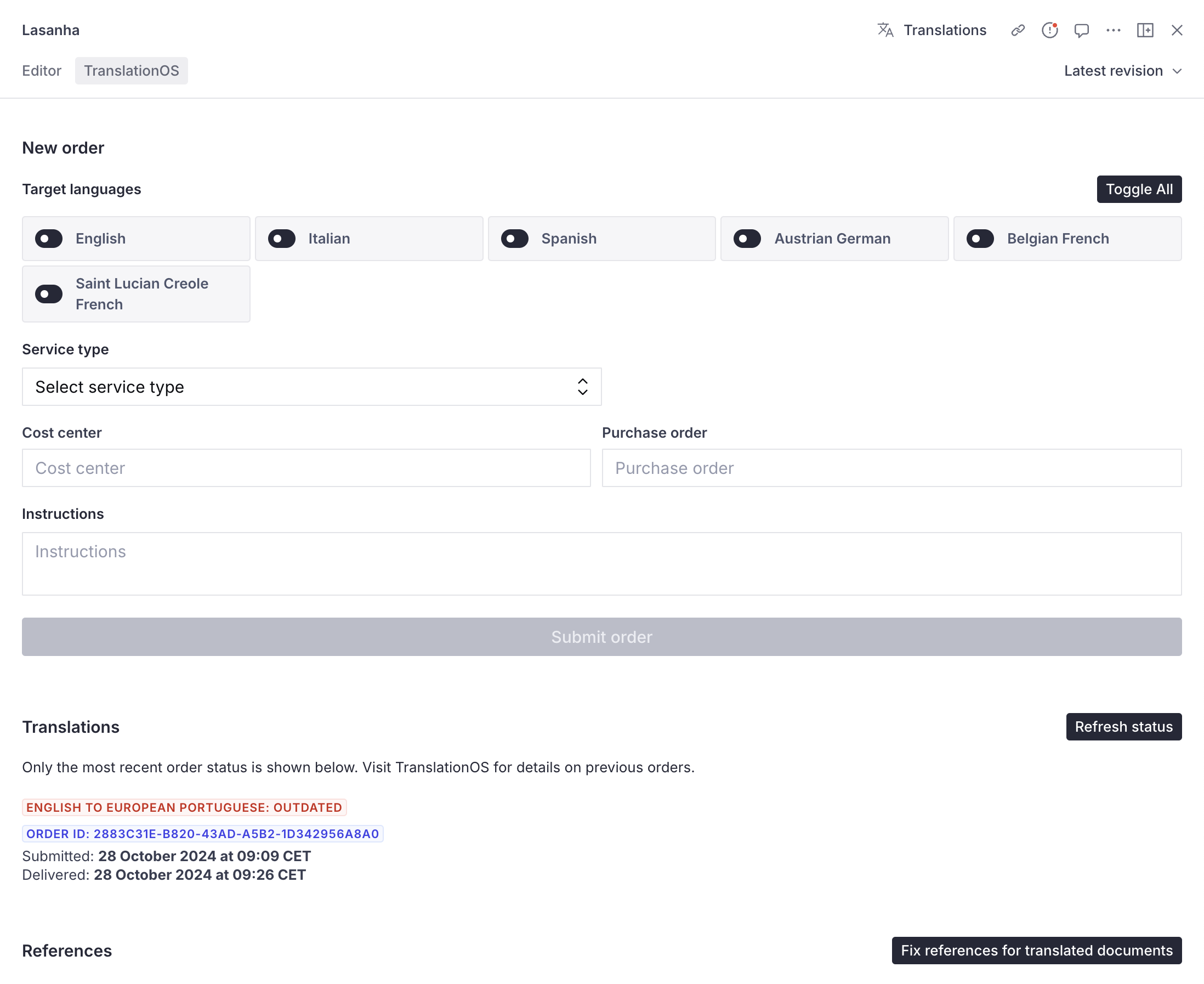
All the configured languages, except for the language of the open document, are available as target languages. For example, when opening the European Portuguese translation of the document in the screenshot above, English is available as a target language, while European Portuguese is not, as shown below.
You can customise your order by toggling the desired target language(s), selecting a service type and optionally providing a cost centre, purchase order and/or instructions.
|
🚨 If you provide a URL in the instructions, make sure that it is an HTTPS URL. HTTP URLs will cause order submission to fail. |
|---|
To confirm the order, click the Submit order button.
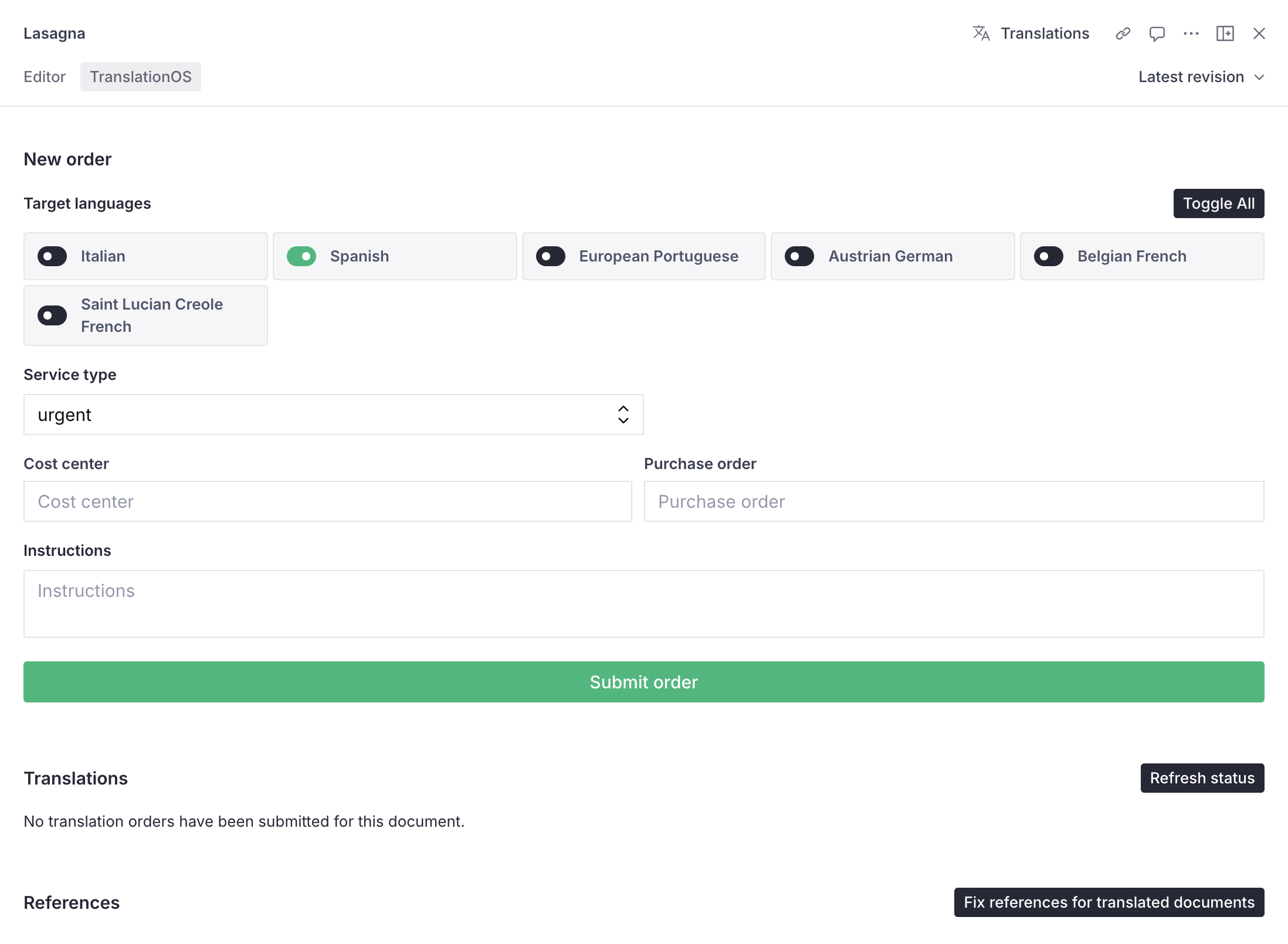
The service type determines the workflow, cost and turnaround time of your translation order. The service level agreement includes all the relevant details.
If your order is placed successfully, it appears in the Translations section.

Monitoring your orders
The Translations section of the plug-in UI displays the most recent order per language pair involving the language of the open document, whether as a source or target language. For example, if you open a document in European Portuguese, the plug-in displays the latest order for which it is the source language, as well as the most recent one for which it is the target language, if any.
The status of your orders changes as the workflow proceeds on TranslationOS, and status-relevant dates and times are provided in your browser’s language.
|
Sanity Studio UI status |
TranslationOS status |
Timestamps displayed |
|---|---|---|
|
IN PROGRESS |
Bucketing |
|
|
Analyzing |
Submitted |
|
|
Due: Calculating… |
|
|
|
IN PROGRESS |
In progress |
Submitted |
|
Due |
|
|
|
COMPLETE |
Delivered |
|
|
Invoiced |
Submitted |
|
|
Delivered |
|
|
|
CANCELED |
Cancelled |
Submitted |
|
OUTDATED |
N/A |
Submitted |
|
Depends on the previous status |
|
|
In the bucketing and analysis TranslationOS phases, the due date is not yet available, as content is being accumulated and analysed before being sent to translators.
.png?cb=5b538e0b0e67d3efe3347637e327c116)
As soon as the expected due date has been calculated by TranslationOS, it is displayed.
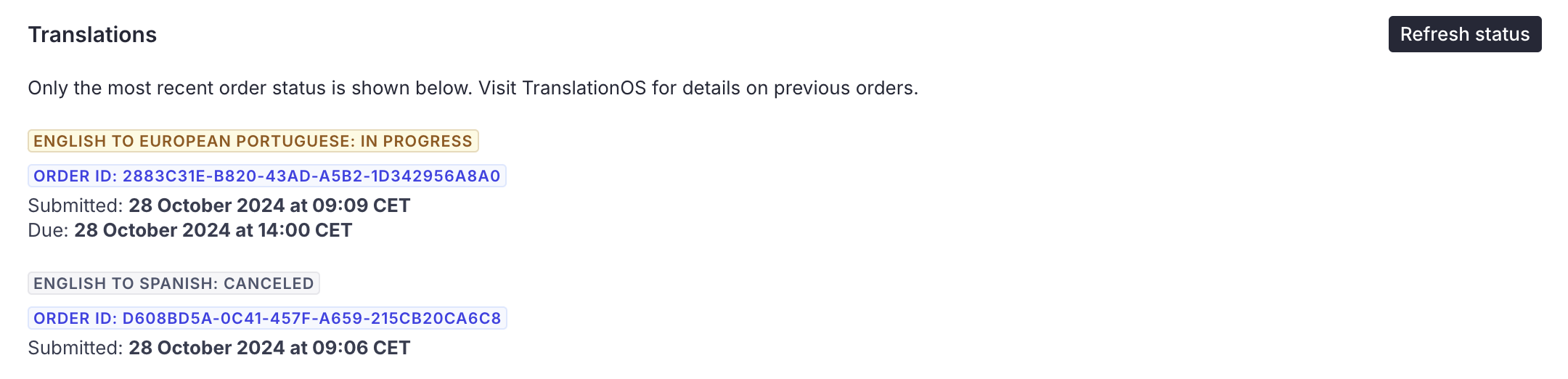
If any modifications are made to the source document after the latest order, all associated translations are considered outdated.
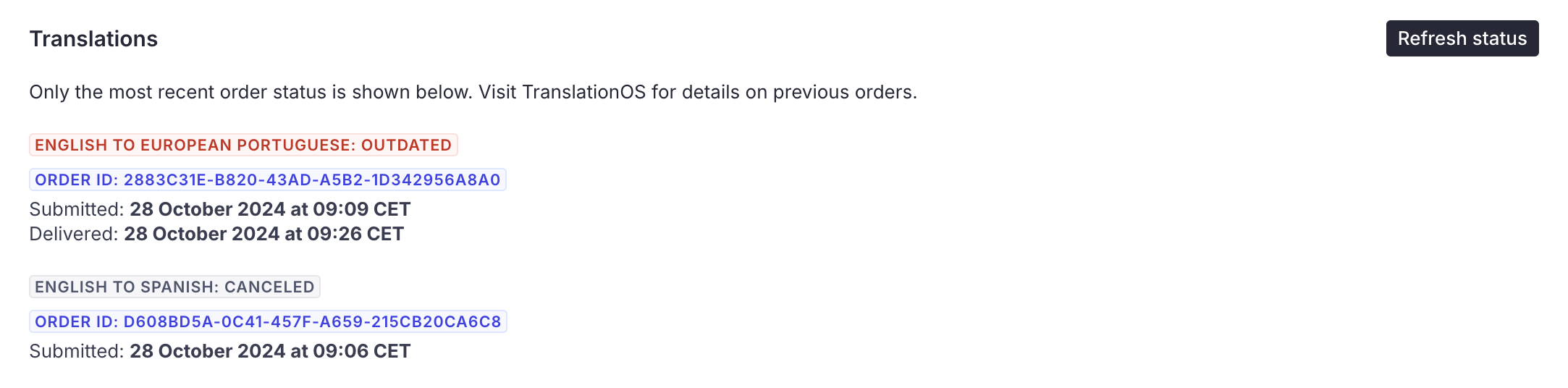
You can manually update the status by clicking the Refresh status button at any time.
Cancelling orders
While orders are still in the bucketing phase in TranslationOS, you can cancel them directly in Sanity Studio by clicking the Cancel order button. The button disappears when an order is no longer cancellable.
.png?cb=5b538e0b0e67d3efe3347637e327c116)
The order then appears as cancelled.

Receiving your translations
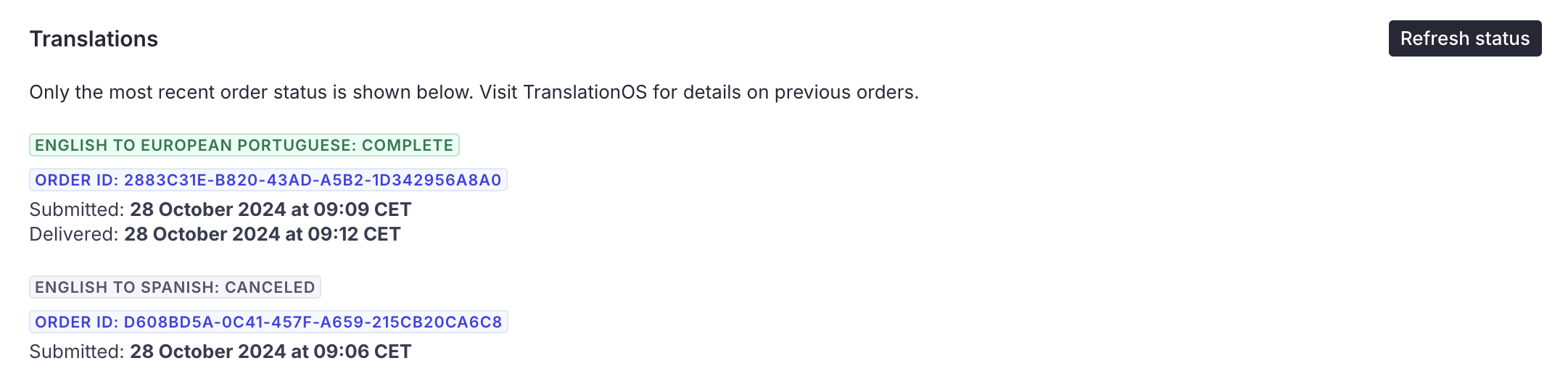
When the final TranslationOS request for a given target language is delivered, a draft Sanity document is created in that language. Note that the connector always creates a draft document at delivery; it doesn’t overwrite any existing published document.
Translated documents can be accessed via the document internationalisation plug-in UI.
The order appears as complete in the Translations section.
FAQ
How do I track my assets in TranslationOS?
TranslationOS uses abstract concepts like content ID, order ID and order group ID to map your content. The values for these fields change depending on the source platform. To retrieve a Sanity Studio order in TranslationOS, use the Requests or Content views in TranslationOS and search by any of the values in the table below.
|
TranslationOS ID |
Sanity Studio value |
Comment |
|---|---|---|
|
Content ID |
<field key>-<random string> |
In the event that the content ID would exceed the TranslationOS API’s limit of 255 characters, <field key> is trimmed. |
|
Order ID |
<random string> |
|
|
Order group ID |
<source document ID> |
|
Which document version is sent for translation?
The plug-in always sends the latest revision of the source document for translation.
How are references managed?
The connector doesn’t ingest or update referenced documents automatically. At delivery, the connector preserves the references present in the source document.
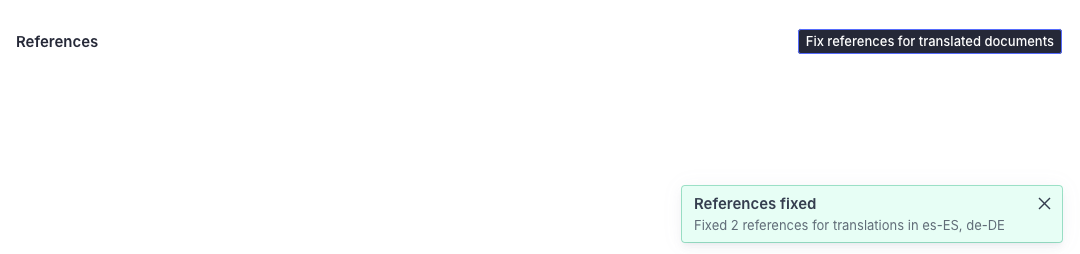
However, the plug-in enables you to associate translated documents with the references in the corresponding language, if available. To do so, open the TranslationOS tab and click Fix references for translated documents.
If any references are amended, the following message is displayed:
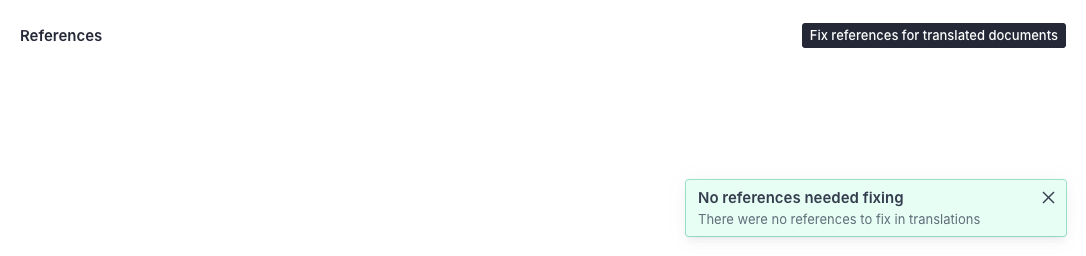
If no references needed to be modified, the following message is displayed:
Which document fields are sent for translation?
The plug-in sends all string, text, slug and block fields for translation; array and object fields are traversed recursively.
The plug-in always excludes Sanity metadata fields such as _id, _rev, _type, etc., and can be configured to exclude fields (recursively in the case of object fields) that would otherwise be sent for translation by setting the exclude property to true in tosProperties, the logic of which is described here.
The hidden and readOnly field properties are not taken into account when determining whether a field should be sent for translation.