.jpg)
Introduction
The TranslationOS connector for Iterable makes it easy to entrust Translated with the professional or automated translation of your campaigns, as well as your email and push templates, saving you the hassle of importing and exporting content or switching between tools.
This connector is event-based, meaning it is triggered by specific actions. To learn which actions trigger the connector, see the section Requesting translations.
Support
For general questions about functionality, our dedicated support team can be reached at info-tos@translated.com.
If you need technical information or you’re ready to integrate your Iterable instance with TranslationOS, feel free to reach out to us at api@translated.com for assistance with onboarding.
The onboarding process may vary depending on your needs, but the following steps are a helpful guideline:
-
Translated will ask you to provide an API key (see below for instructions to retrieve it).
-
Translated will enable you to test the connector in sandbox mode, which means that you will get back machine-translated content to test the user experience.
-
You will agree with Translated on the required service levels, also known as service types. Translated will take care of configuring the connector for you.
-
We will be ready to receive, process and deliver your translation requests!
Setting up the connector
You will need to generate an API key on Iterable and communicate it to Translated. If you require URLs to be localised, we will also ask you to provide us with the necessary regexes. We will then complete the connector configuration for you.
Generating an API key
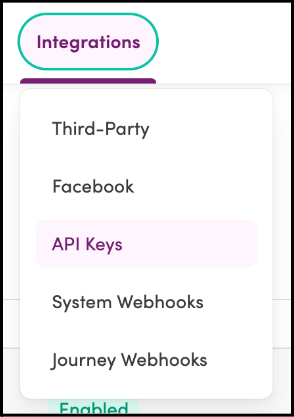
You can create a new API key by navigating to Integrations > API Keys.
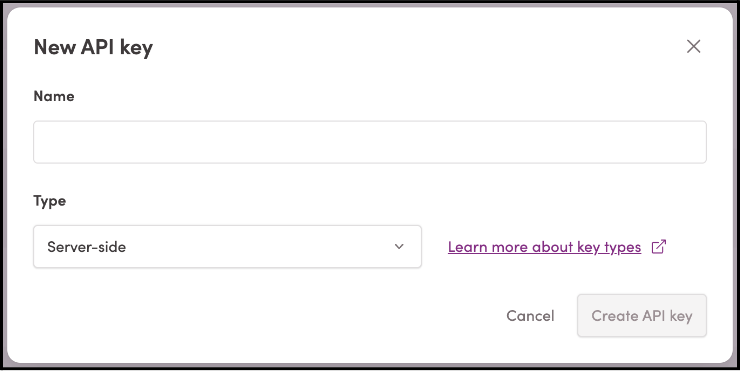
Give the new API key a name and select Server-side in the drop-down menu labelled Type, then click Create API key.
Configuring URL preprocessing
When placing an order, you can enable URL pre-processing, which entails adapting language codes in URLs based on the corresponding target languages. Please send us the extraction and replacement regexes we should use to insert the target locale in the localised URLs, following the example below.
Extraction regex: (?<prot>https|http)\\:\\/\\/(?<host>brand\\.company\\.biz)\\/(?<path>(?:\\S*[\\/])*)(?<filename>[^\\.]*)\\.(?<ex>[^?"']*)(?<query>(?:^\\?"')*)
Replacement regex: $<prot>://$<host>/$<path>$<filename>-{{locale}}.$<ex>$<query>
Using the connector
Accessing the intake manager
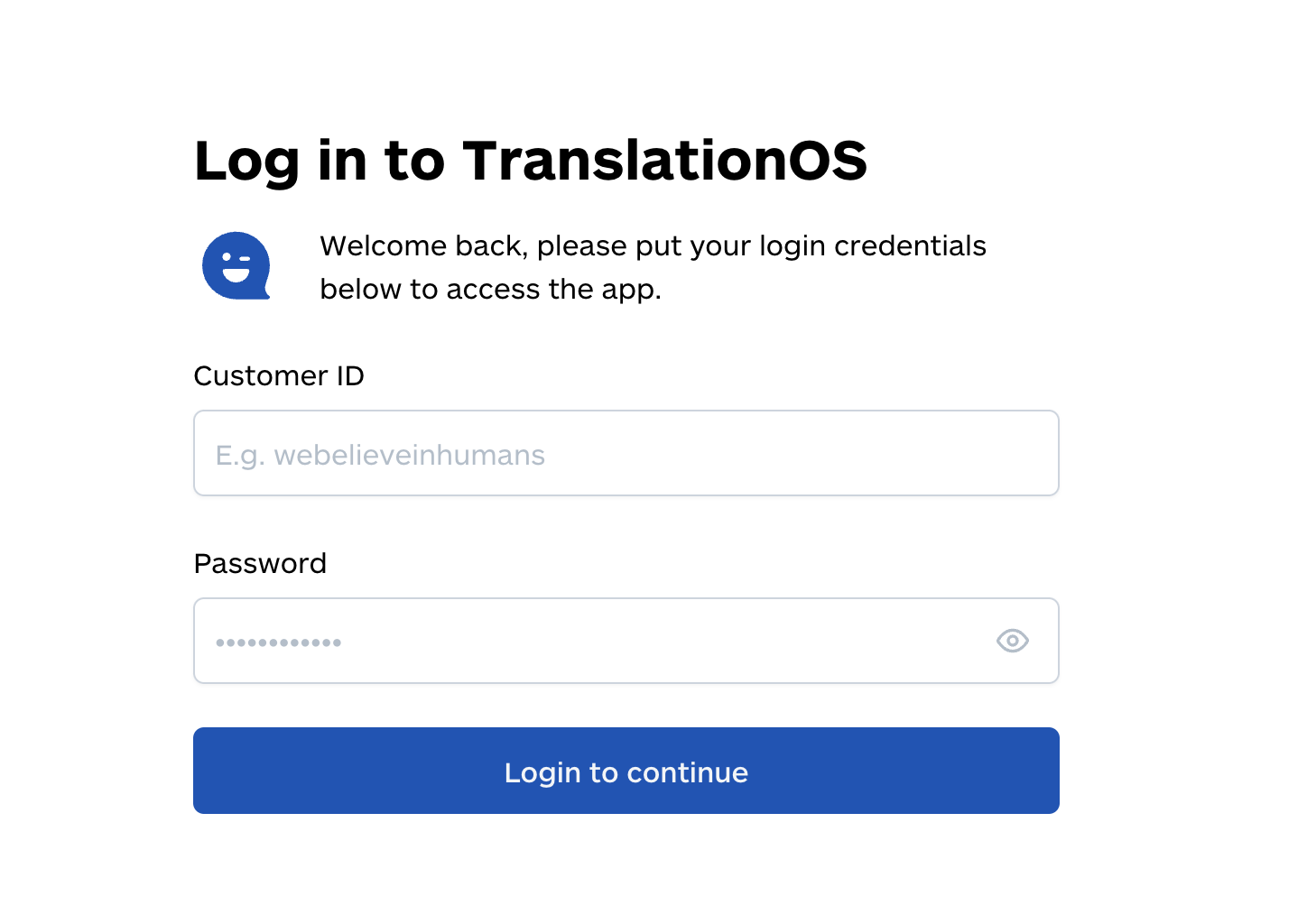
Log in to the Iterable intake manager with your TranslationOS credentials.
Navigating the UI
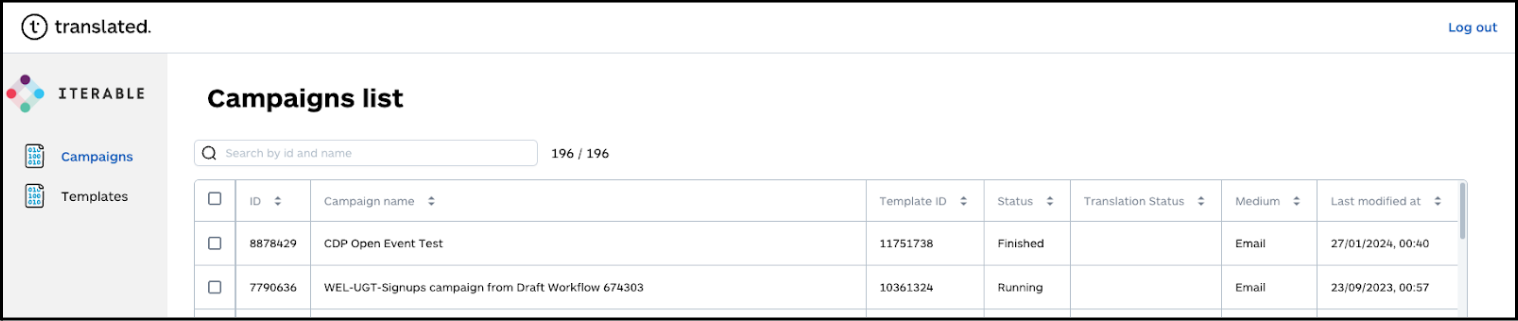
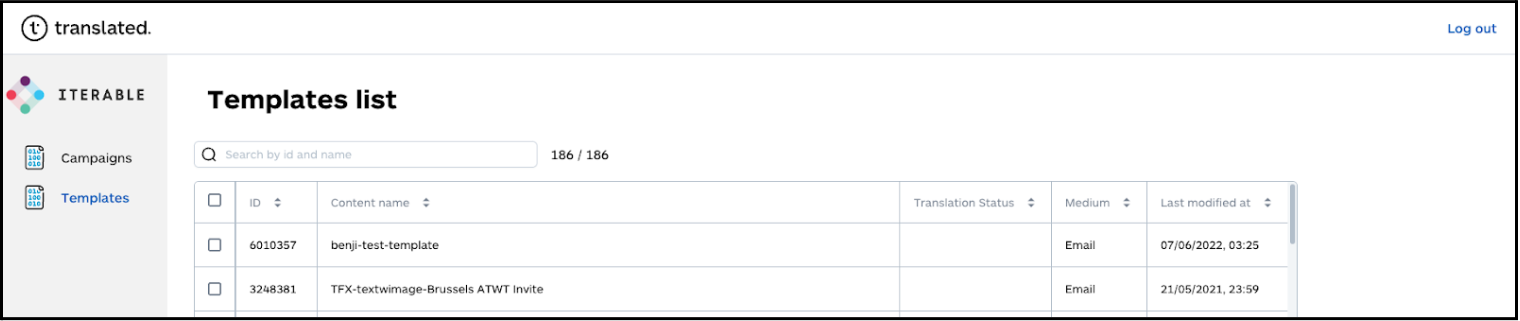
You can select whether to view campaigns or templates in the sidebar.
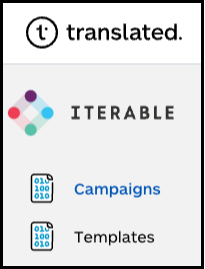
In the Campaigns view, you’re presented with all your campaigns and some metadata: their ID, name, template ID, status, medium and last modification date. You can filter them by ID or name.
In the Templates view, you can see your email and push templates and associated metadata: their ID, name, medium and last modification date. They can be filtered by ID or name.
Requesting translations
In the Campaigns or Templates view, select the items you want to translate.
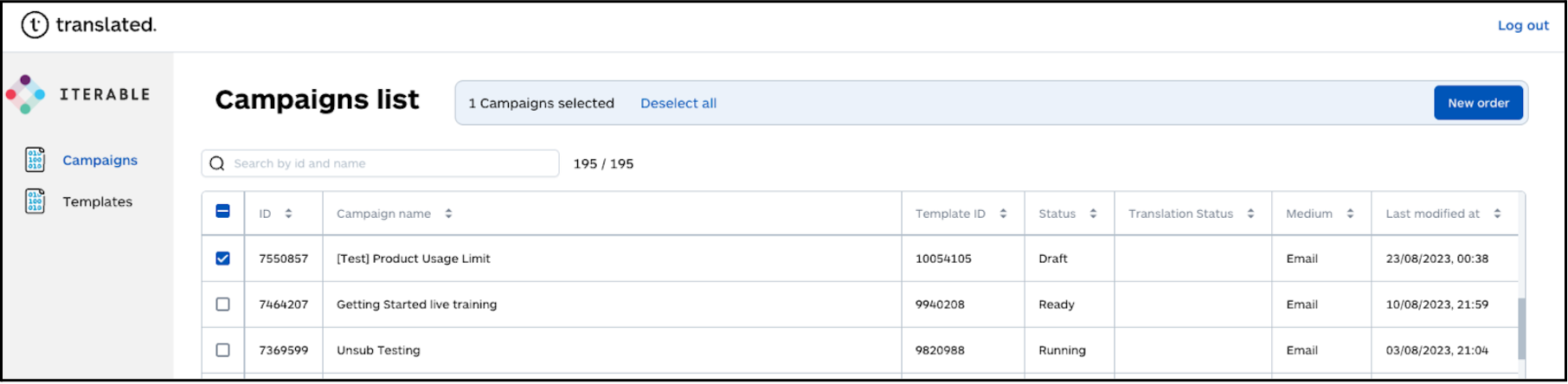
Once you have selected the content, click New order, then fill in the fields as required. The URL preprocessing option is explained here.
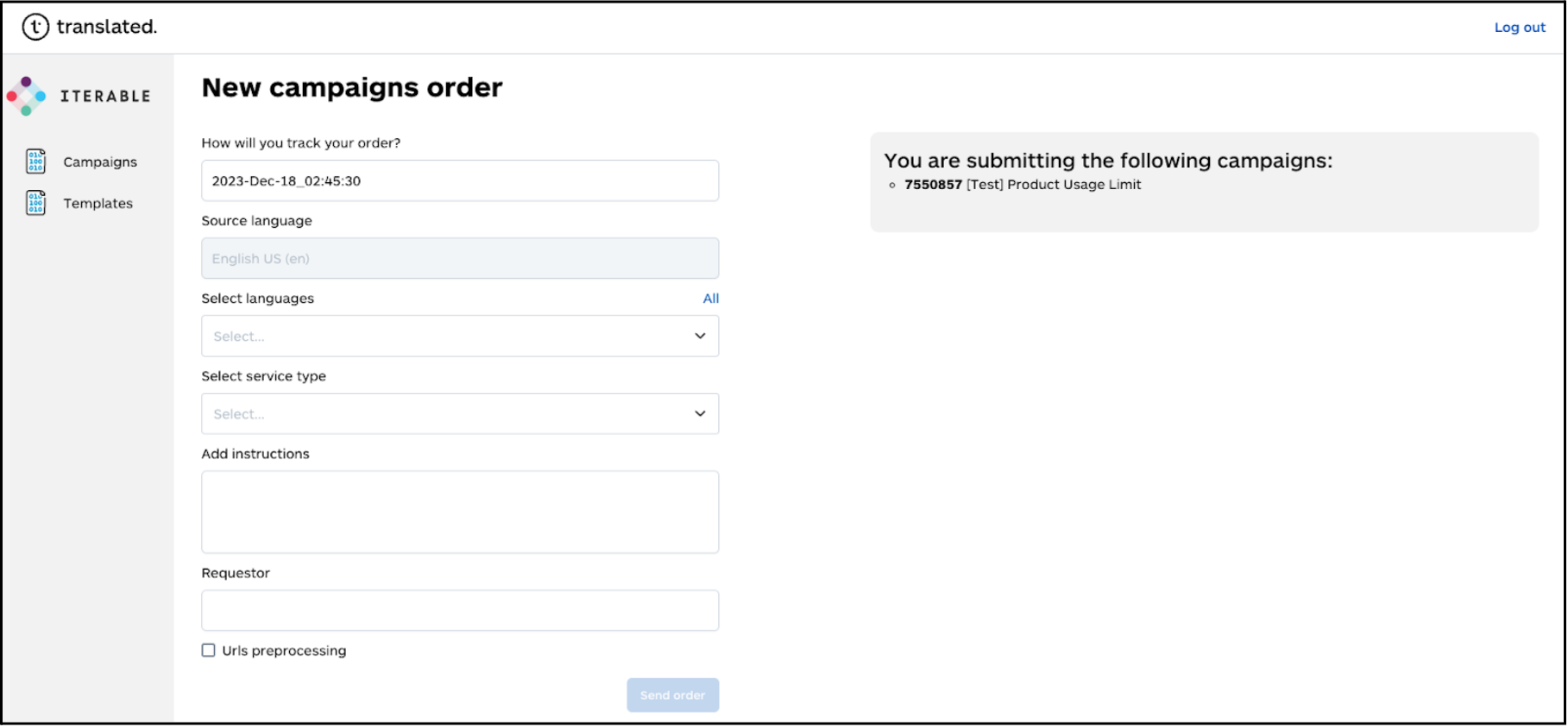
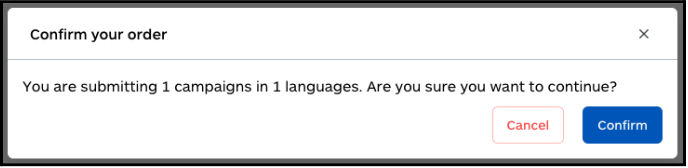
Click on Send order, then Confirm. You’ll then see an order confirmation message.
Monitoring the translation progress
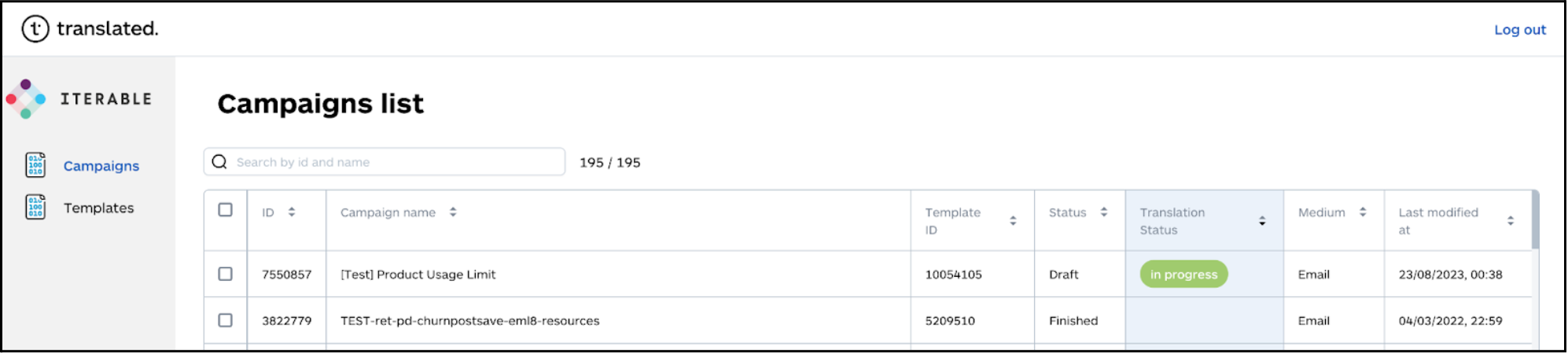
Once the order has been submitted successfully, the status of the order changes to in progress in the connector’s UI.
Receiving the translated content
Once all the associated requests have been delivered, the Translation Status of the relevant campaign/template is emptied.
FAQ
How do I track my assets in TranslationOS?
TranslationOS uses abstract concepts like content ID, order ID and order group ID to map your content. The values for these fields change depending on the source platform. To retrieve an Iterable asset in TranslationOS, use the Requests or Content views in TranslationOS and type the asset name or type according to the table below.
Campaign
|
TranslationOS ID |
Iterable value |
Comment |
|---|---|---|
|
Content ID |
<template ID> |
<field type> |
|
Order ID |
Campaign - <campaign name> |
|
|
Order group ID |
<provided by client when placing order> |
This value is provided in the field labelled How will you track your order? in the order form. By default, it is populated with the timestamp of the current date and time. |
Template
|
TranslationOS ID |
Iterable value |
Comment |
|---|---|---|
|
Content ID |
<template ID> |
<field type> |
|
Order ID |
Template - <template name> |
|
|
Order group ID |
<provided by client when placing order> |
This value is provided in the field labelled How will you track your order? in the order form. By default, it is populated with the timestamp of the current date and time. |