.jpg)
Introduction
The TranslationOS plugin for Figma makes it easy to entrust Translated with the professional or automated translation of your frames, saving you the hassle of importing and exporting content or switching between tools.
The TranslationOS plugin for Figma is available for both the desktop and web apps on Figma Community.
This connector is event-based, meaning it is triggered by specific actions. To learn which actions trigger the connector, see the section Requesting translations.
Support
For general questions about functionality, our dedicated support team can be reached at info-tos@translated.com.
If you need technical information or you’re ready to start using the Figma plugin, feel free to reach out to us at api@translated.com for assistance with onboarding.
The onboarding process may vary depending on your needs, but the following steps are a helpful guideline:
-
You will agree with Translated on the required service levels, also known as service types.
-
We will set up your TranslationOS account and permissions.
-
You will then download the production plugin from Figma community.
-
We will be ready to receive, process and deliver your translation requests!
Setting up the plugin
TranslationOS SSO
Before you can use the TranslationOS plugin for Figma, we need to ensure that it has been enabled for your TranslationOS account and that you have been granted the necessary permissions.
If your SAML-based identity provider (IdP) has been integrated with TranslationOS SSO, we can configure permissions for each individual user. Alternatively, if you use your customer ID to log in, we can set up permissions for your customer ID only.
It is also possible to configure both. This is useful if most users require the same permissions, while only a few need specific configurations. In that case, you can rely on the customer ID for most users, and specific permissions can be granted to the SSO accounts of the remaining users.
Each user can be granted permission to place orders and/or import orders.
Installing the plugin
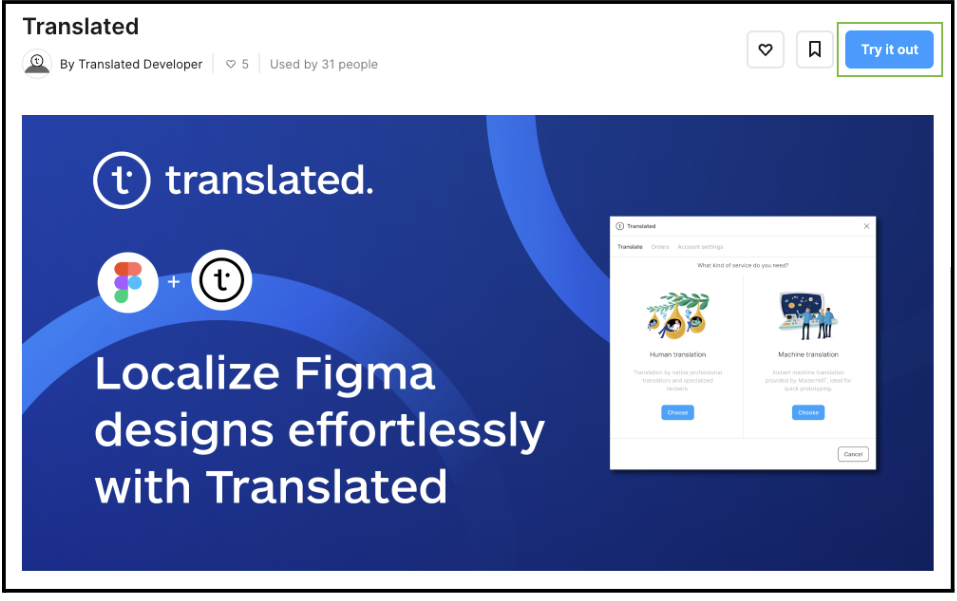
To install the plugin, visit the plugin’s page or search for the plugin on Figma Community, then click Try it out.
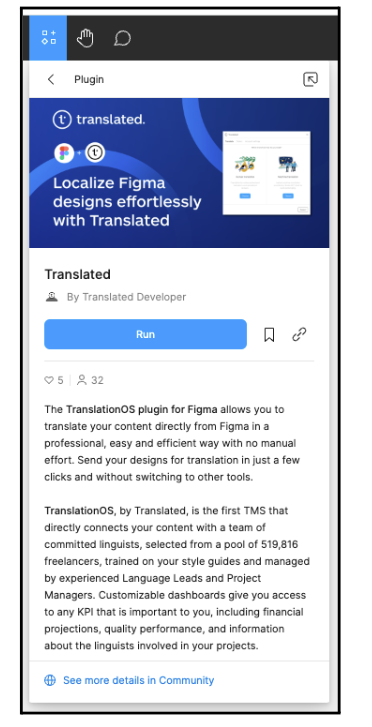
You’ll be redirected to the main screen and see the below pop-up. Click Run if you wish to begin using the plugin right away.
Logging in
Open the plugin either by clicking Translated in the pop-up that appears after installation, or by right-clicking in any blank area and navigating to Plugins > Translated.
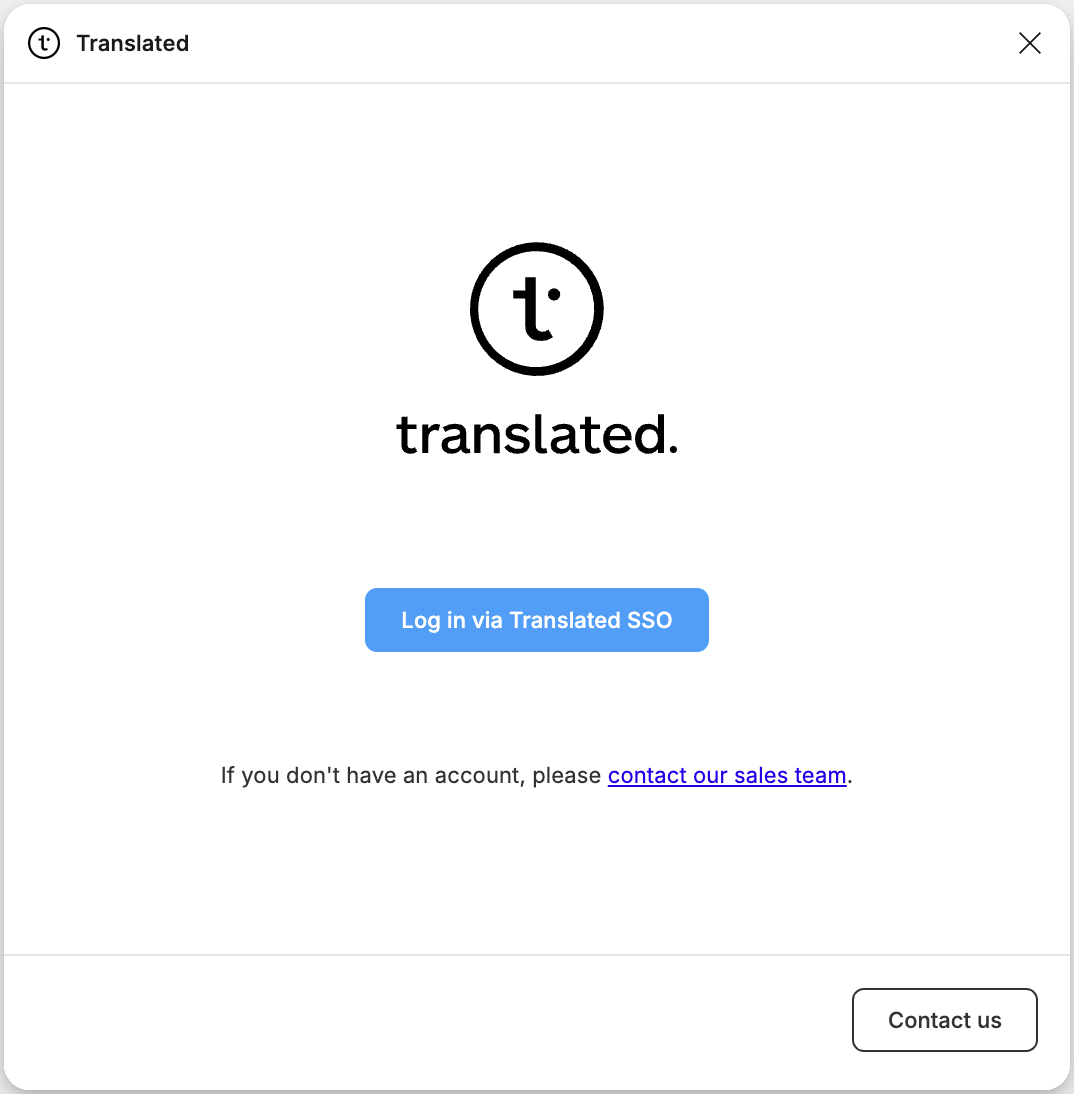
Click Log in via Translated SSO.
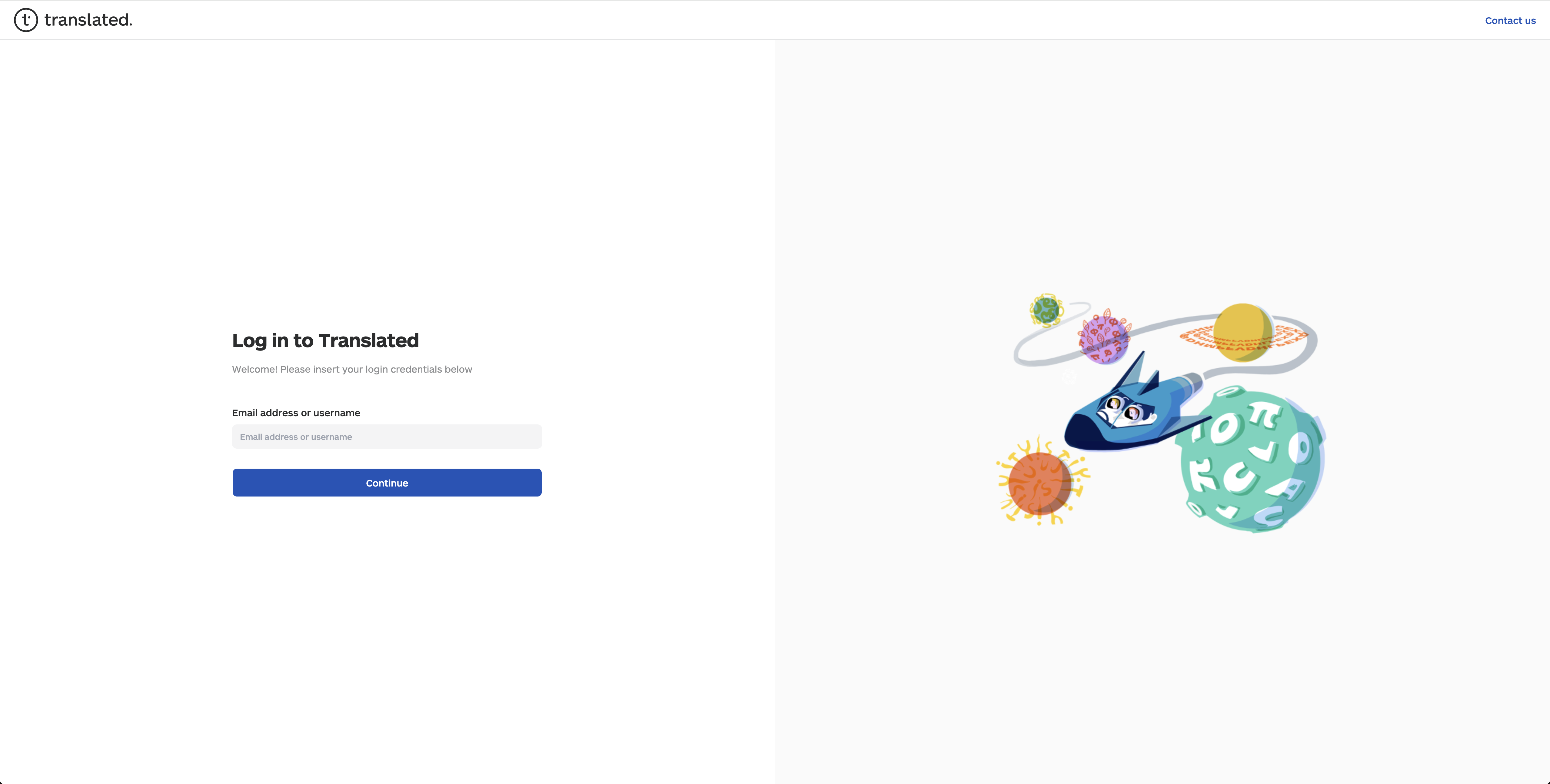
A new tab will open in your browser. Insert your TranslationOS login credentials and click Continue.
If you are successfully authentication, you will see the following screen.

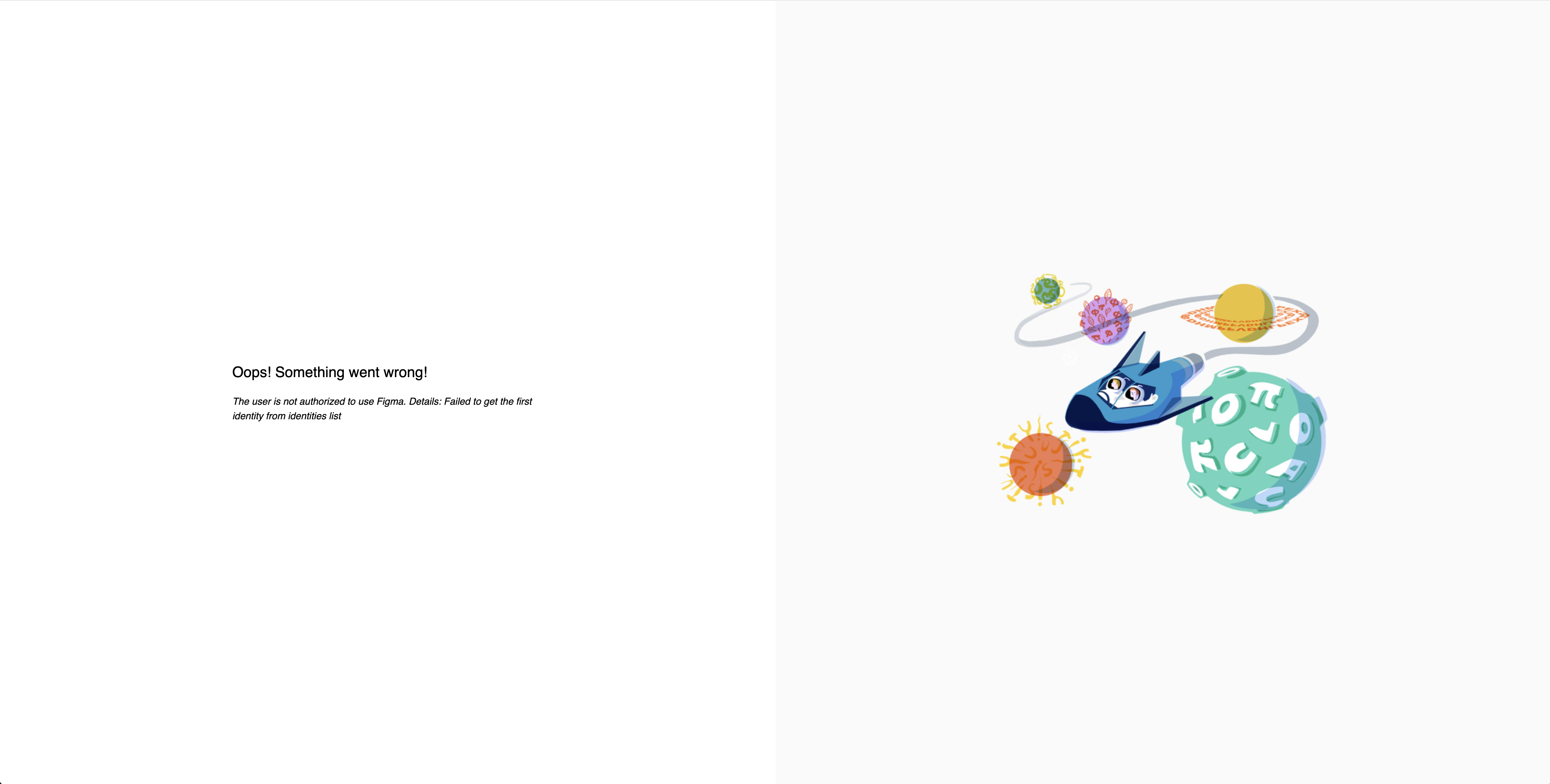
If it fails and you see the screen below, have a look at this FAQ.
The next screen allows you to insert your Lara license key. Lara is our AI translation service. If you need more information, please get in touch with your account manager. Pricing is available by clicking on Purchase.
If you don’t have an Lara license key, or if you only wish to request human translations, you can skip this step.
Configuring the plugin
The plugin is configured in the Account settings tab.
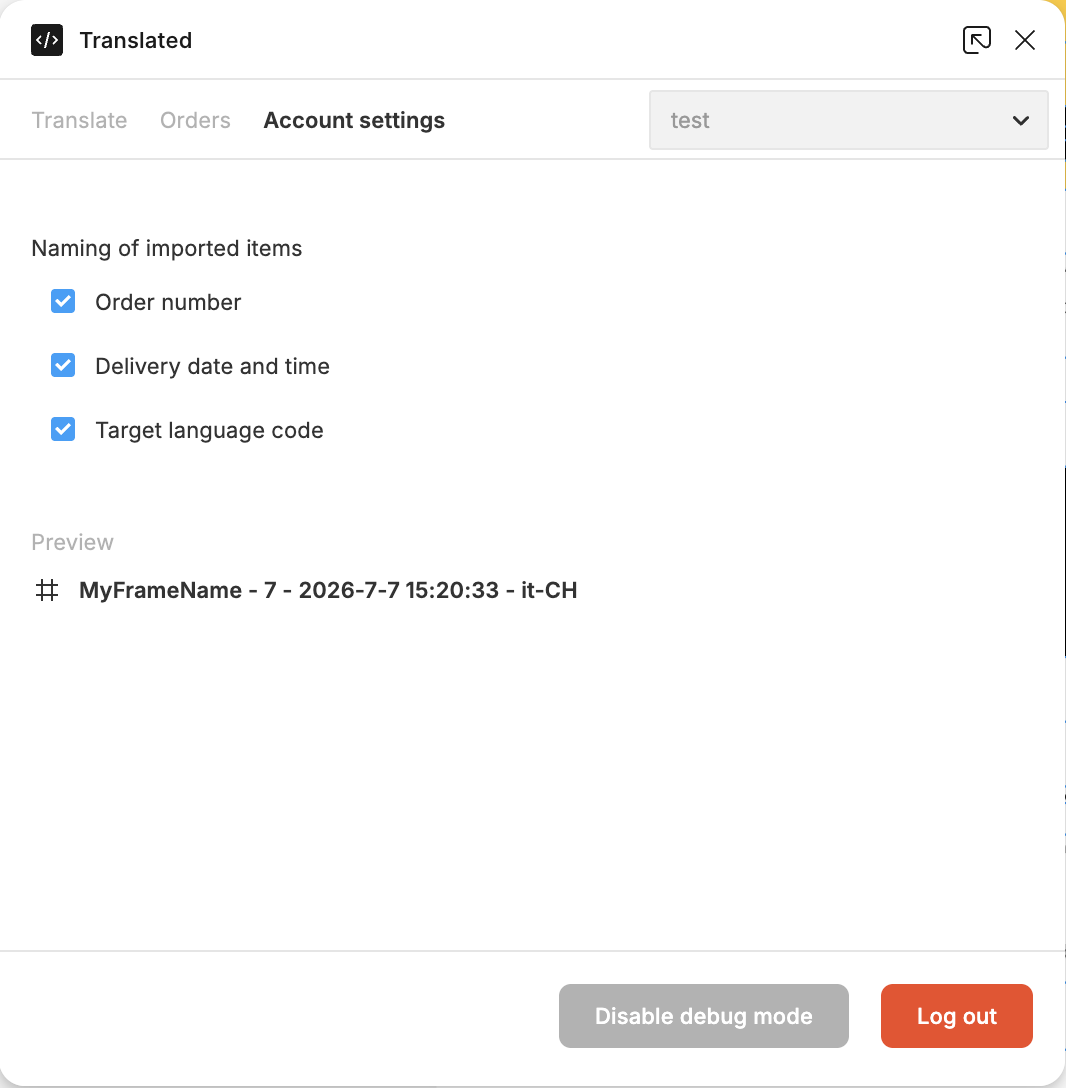
Here you can insert your Lara license key or click on Lara license to see pricing.
You also have the option to choose what metadata to include in the names of imported frames:
-
Order number
-
Delivery date and time
-
Target language code
The behaviour when importing orders can be customised: a new page can be created per target language at each import, or the translated assets can be added to any existing target page at each import.
You can also toggle debug mode, which switches between logging only warnings and errors, or producing more verbose console logs for granular troubleshooting.
Using the plugin
Requesting translations
With the plugin open to the Translate tab, select the content you want to translate—whether text layers, or sections, components or frames containing text layers—directly on the page or in the sidebar. If you can’t place orders, see this FAQ.
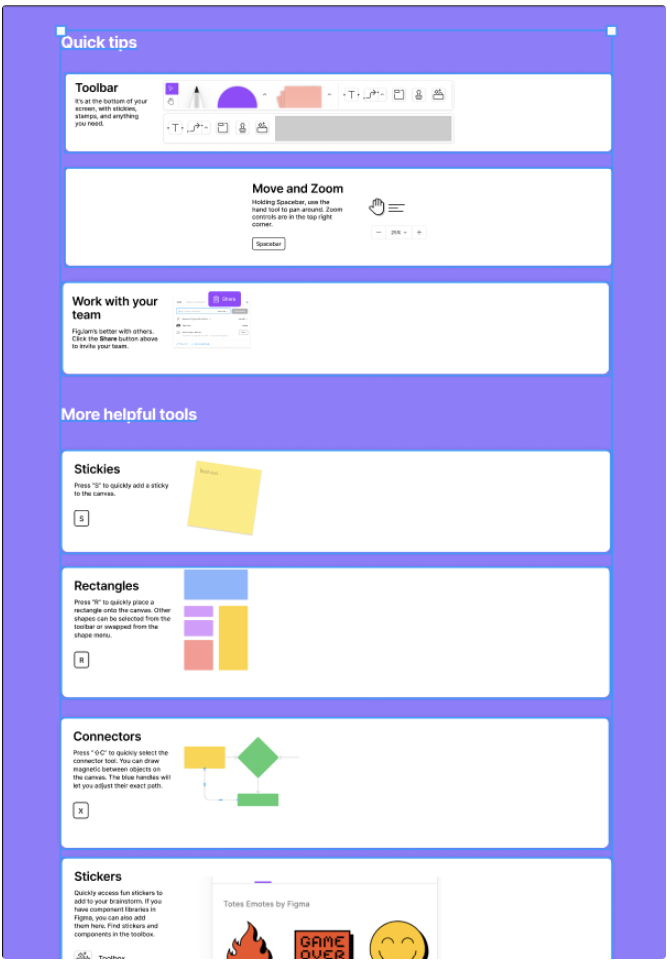
Make sure to hide or unhide layers before selecting them. After a layer is selected, changing its visibility (hidden/unhidden) will not update the list of selected layers in the plug-in due to a limitation in Figma.
You will see a list of text layers that will be sent for translation. Use the checkbox alongside any item to toggle select it. If you have hidden text layers on your page that you want to translate, you can uncheck the box labeled Ignore hidden layers.
Click on Continue to customise your order.
.png?cb=0138bfd8fc6c89eec4f546988e9c8bc6)
You will be asked to choose between human and machine translation.
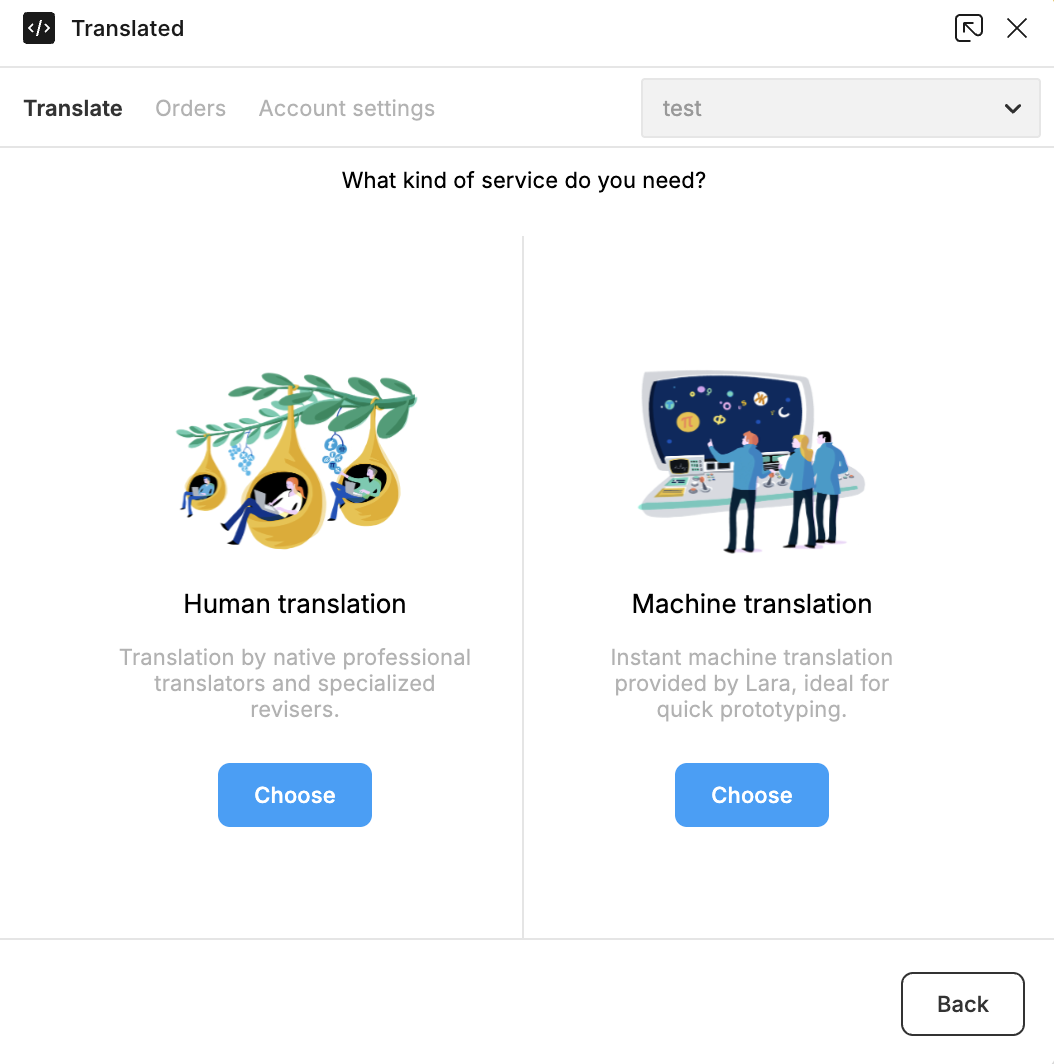
The machine translation option is only available if you have inserted an MMT license key. If you already have a key and haven’t yet inserted it, you can do so now by clicking on Unlock. If you don’t have a key and would like to buy one, you can select Unlock and then click Lara license to be redirected to the Lara website or contact your AM to support you.
Human translation
Opting for human translation ensures a high-quality professional service. In the next screen, you’re asked to customise your order.
.png?cb=390310e854ff9a9bceff2a33f96344e9)
.png?cb=a6789af237669caac07dc13934b69b21)
You’re required to select a service type from the list of available options. It determines the workflow, cost, and turnaround time of your translation order. The service level agreement includes all the relevant details.
You can then fill in the remaining fields as appropriate:
-
Select the source language and the target language(s) for which you want to request the translation.
-
The Cost center field allows you to specify in which group you would like the costs placed in your invoice.
-
The Figma file URL field can be used to provide a direct link to the Figma file in case a desktop publisher needs to be involved in the workflow.
-
You can also provide translation instructions in the Instructions field.
Once you’re done, click Translate.
If your order is placed successfully, the following screen is displayed, where you can view your orders or continue to place another order.
.png?cb=bf860d3cdc5c057da8720aa087c30121)
A project will be created in Matecat, our CAT tool, and a professional translator will work on it. For each text layer, translators will have a screenshot of the frame in which the text appears, provided as visual context in Matecat.
.png?cb=a77f4a21984de08494a82400b2a5dcd0)
Machine translation
Machine translation is useful for rapidly prototyping localized frames, because you get translations right away.
If you have an Lara license associated with the plugin, you can choose to machine translate your content in the chosen language pair(s).
.png?cb=9c9f6cf51c0349032236c47a2f5d29f2)
You can select which translation memories and/or glossaries to use for adaptation, if your license is associated with any. Learn more here.
.png?cb=d5149c255447f25d5cee011cd3d9c1c6)
Your order will be ready for import shortly after clicking Translate.
Monitoring your orders
You can check the status of your translation requests directly in the plugin by clicking on the Orders tab.
.png?cb=703e1934b79ec345abc2de97e67a3b28)
Here **you can see if your orders are in progress or have been completed and are ready for import.
The order list is refreshed every time you open the plugin, or you can manually refresh it with the button alongside the search bar.
Click All orders to visit the TranslationOS dashboards.
In the orders table, you can see all the frames sent for translation by toggling the small triangle in the Order ID column.
.png?cb=b825f890c0dfcc1c118429943a0c5c01)
By clicking on the three horizontal dots alongside an order, you are presented with a menu where you can view further details or contact Translated. Selecting View details takes you to the TranslationOS dashboards, where you’ll find detailed information on your translation requests, while Contact us allows you to send us an email to request further information.
Importing your orders
Once a translation has been delivered, its status changes to Completed in the Orders tab of the plug-in and the Import button is clickable. Once all translations have been delivered, the order status and Import button are also updated accordingly. If you can’t import orders, see this FAQ.
.png?cb=703e1934b79ec345abc2de97e67a3b28)
Clicking Import displays the following screen. The import process can be cancelled by clicking Cancel.
.png?cb=c4d0a16771ca3feaa3f66a3dc250c8df)
Once importing has been completed, the pages are visible in the sidebar.
.png?cb=a41828afb49d224f45e0a0595533f5ea)
Based on the target language and the layout, formatting adjustments may be necessary. If you need ready-to-use translated frames, you can request a desktop publishing service from your account manager.
Reimporting orders
When reimporting an order, the target language page is overwritten, even if it has been renamed. To avoid this, the page must be moved to another file.
Additional information
Troubleshooting
In the event of errors, a toast message is displayed.
Missing fonts in text layers

If you see this toast message, you need to fix the missing fonts.
Console
In some cases, you could receive toast messages asking you to view the console. To do that, if you’re using the desktop app, click on the main menu and navigate to Plugins > Development > Open console.
.png?cb=a26b442ad55aacb4f618789e66e8787a)
If you’re using the web app, you need to access your browser’s console.
For more detailed console logs, enable debug mode in the Account settings tab.
FAQ
Why does authentication fail?
If you see the screen below, the Figma plugin hasn’t been configured for your TranslationOS account, as explained here. Please get in touch with us so that we can set it up for you.
.png?cb=87ce8411496ab65a301bc192e29f5900)
Why can’t I place orders or import them?
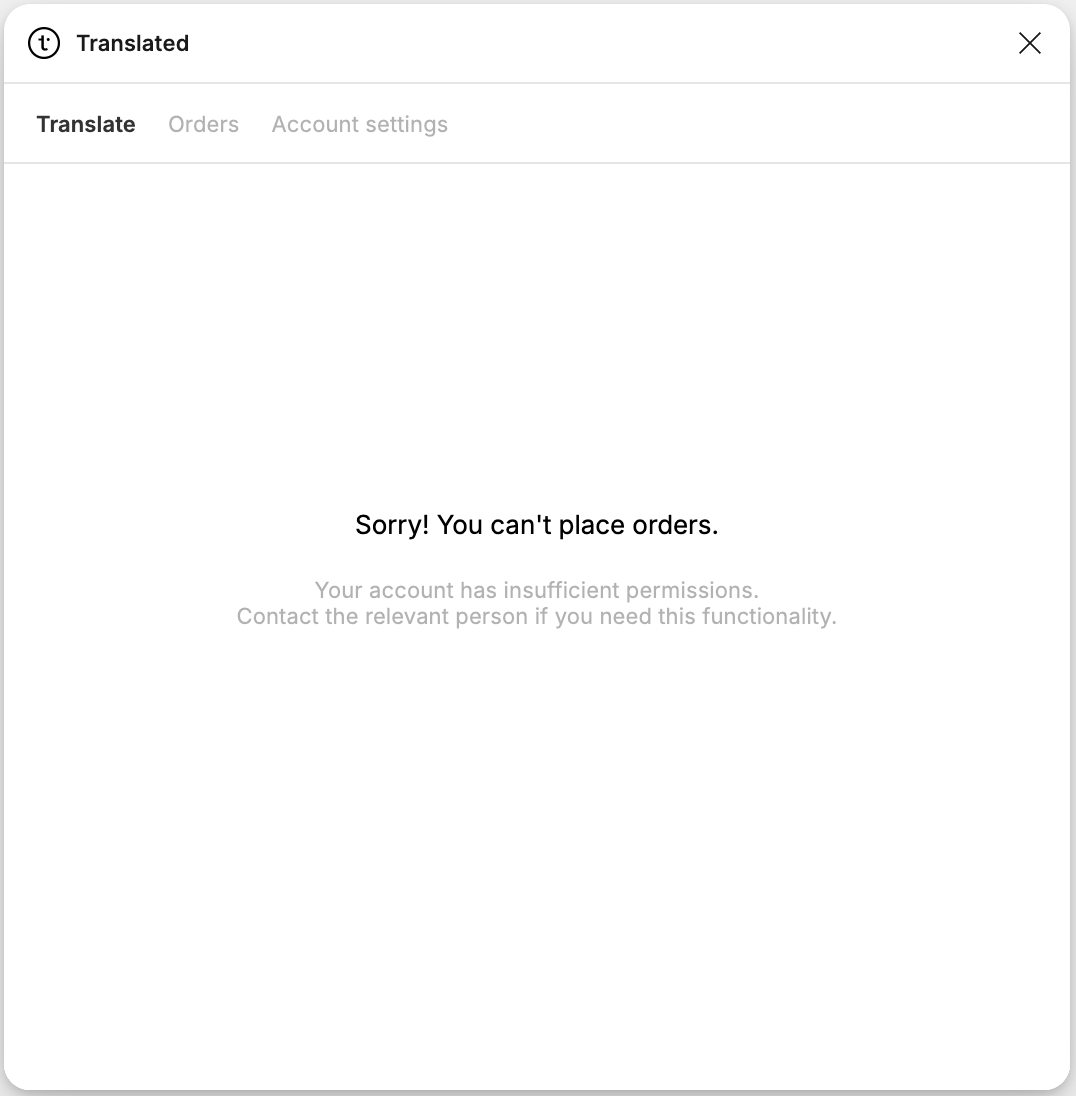
If you can’t place orders (in which case you’ll see the following view in the plugin) or import them, your TranslationOS user hasn’t been granted the necessary permissions, as explained here. Please get in touch with us so that we can set them up for you.
Text fields appear empty after import and there are no font issues. What can I do?
This is a known issue with Figma. To work around it:
-
Select the frame(s) containing the apparently empty text field(s).
-
Right-click in a blank canvas area, or click the Figma menu, and select Actions…
-
Search for Recompute text layout in selection and select it.
-
The frame should be reloaded, and the text should now appear.
How can I send instructions to translators?
When placing an order, there is a field labeled Instructions that you can fill in.
How do I track my assets in TranslationOS?
TranslationOS uses abstract concepts like content ID, order ID and order group ID to map your content. The values for these fields change depending on the source platform. To retrieve a Figma order in TranslationOS, use the Requests or Content views in TranslationOS and search by any of the values in the table below.
v1–v3
|
TranslationOS ID |
Figma value |
Comment |
|---|---|---|
|
Content ID |
<top-level item name_<top-level item node identifier>_<order group ID> |
In the event that the content ID would exceed the TranslationOS API’s limit of 255 characters, <top-level item name> is trimmed. |
|
Order ID |
<page name> |
|
|
Order group ID |
<random string> |
|
v4
|
TranslationOS ID |
Figma value |
Comment |
|---|---|---|
|
Content ID |
<top-level item name><top-level item node identifier><random string> |
In the event that the content ID would exceed the TranslationOS API’s limit of 255 characters, <top-level item name> is trimmed. |
|
Order ID |
<page name> |
|
|
Order group ID |
<file name> |
|