.jpg)
Introduction
The TranslationOS connector for XTM makes it easy to entrust Translated with the professional or automated translation of your projects, saving you the hassle of importing and exporting content or switching between tools.
This connector is fetch-based, meaning it checks XTM at a configurable interval for any content that you have marked for translation. To learn how to mark content for translation, see the section Requesting translations.
Support
For general questions about functionality, our dedicated support team can be reached at info-tos@translated.com.
If you need technical information or you’re ready to integrate your XTM instance with TranslationOS, feel free to reach out to us at api@translated.com for assistance with onboarding.
The onboarding process may vary depending on your needs, but the following steps are a helpful guideline:
-
Translated will ask you to obtain authentication credentials (see below for instructions to retrieve them) and do some simple configuration.
-
Translated will enable you to test the connector in sandbox mode, which means that you will get back machine-translated content to test the user experience.
-
You will agree with Translated on the required service levels, also known as service types. Translated will take care of configuring the connector for you.
-
We will be ready to receive, process and deliver your translation requests!
Setting up the connector
To help us configure the connector and prepare it for production, you will need to add a new account, retrieve authentication credentials from XTM and set up a couple of custom fields. We will then complete the connector configuration for you.
Adding an account
To begin, configure an XTM account with the Project Manager role, using this email address template: <company name>-xtm-connector@translated.net.
Requesting authentication credentials
With that done, follow these instructions to obtain OAuth credentials.
Also ask XTM support for the OAuth token retrieval URL. It is typically, but not always, derived from the XTM instance URL, e.g. https://www.xtm-cloud.com/authentication-api/oauth/token.
Sending Translated the required information
Once you’ve received the OAuth credentials and token retrieval URL from XTM, send the following information to Translated securely:
-
URL to your XTM instance (typically https://www.xtm-cloud.com or https://companyname.xtm-intl.com)
-
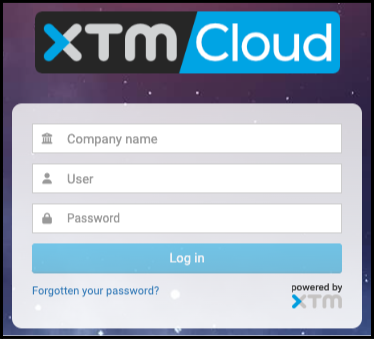
login credentials
-
company name
-
username
-
password
-
-
OAuth credentials
-
OAuth client ID
-
OAuth client secret
-
OAuth token retrieval URL
-
-
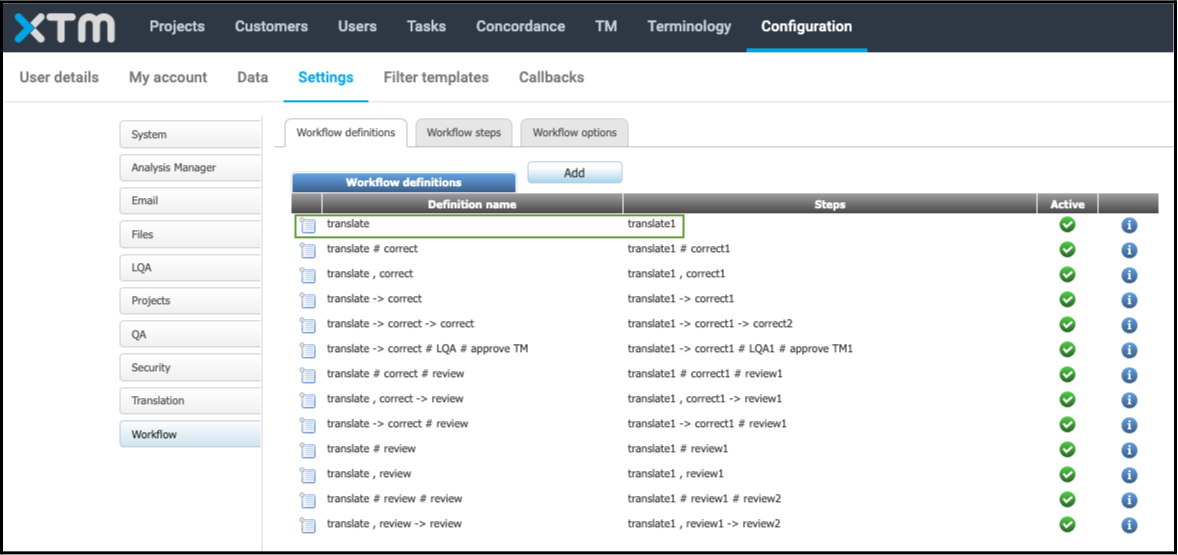
translation workflow step name
-
In the below example, if you’re using the translate workflow, the workflow step name is translate1.
-
Configuring custom fields
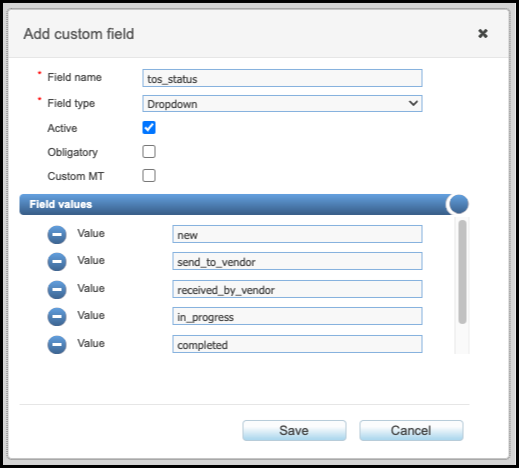
To allow the connector to identify when projects are ready for translation and update their progress as they’re processed, as well as to permit you to select service types, you need to set up two custom fields. To do so, navigate to Configuration > Data > Custom fields.
Add a custom dropdown field named tos_status, with the following values:
-
new
-
send_to_vendor
-
received_by_vendor
-
in_progress
-
completed
-
failed
Add another custom dropdown field named tos_service_type, the values of which will be provided by Translated.
Using the connector
Requesting translations
As soon as we’ve confirmed that the connector configuration is in place, you’re ready to translate your projects.
When creating a project, select either new or send_to_vendor in the tos_status custom field, depending on whether you want to wait before allowing the connector to intake the project or not, and select the desired service type in the tos_service_type custom field.
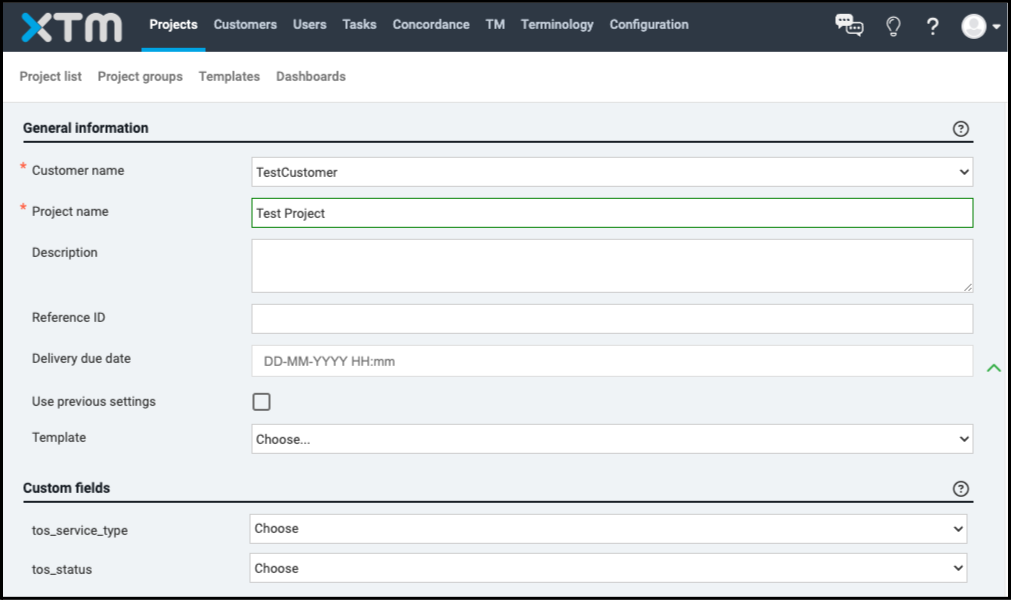
The connector periodically checks for new projects with tos_status set to send_to_vendor and intakes them. While the project is being intaken, the value of tos_status is changed to in_progress. As soon as the project is created, the status moves to received_by_vendor. If any errors occur during intake, tos_status is changed to failed.
Receiving the translated content
Once translations are ready, the connector populates and confirms the segments of the first workflow step on XTM, updates the translation memory, then advances the workflow to the next step, if any.
Cancelling translations
In-progress requests can be cancelled on TranslationOS. All other cancellation requests require the intervention of the project manager.
Asset synchronisation
The connector can be configured to import the translation memory associated with the XTM customer of each ingested project, as well as the translation memories of other customers which have been specifically enabled for the project. This ensures that your translations are leveraged by TranslationOS.
FAQ
How do I track my assets in TranslationOS?
TranslationOS uses abstract concepts like content ID, order ID and order group ID to map your content. The values for these fields change depending on the source platform. To retrieve an XTM job or project in TranslationOS, use the Requests or Content views in TranslationOS and search by any of the values in the table below.
|
TranslationOS ID |
XTM value |
|
Content ID |
<project ID>-<job ID>:<XLIFF source language code>-><XLIFF target language code> |
|
Order ID |
<XLIFF file name> |
|
Order group ID |
<project name> |